Snowplow v3 Tags
Snowplow provides custom GTM Tag templates for general Snowplow tracking, as well as ecommerce tracking.
Tag Type
Under Tag Type, you can choose what type of command is compiled and sent to the endpoint. The tag types are split here into three groups: commands that utilize a common parameters object, commands that have special conditions, and custom commands.
Tags with a parameter object
Tags that can derive their parameters from a Google Tag Manager variable are:
- Ad Tracking
- Cart Tracking
- Error Tracking
- Consent
- Self-describing Event
- Site Search
- Social Interaction
- Structured Event
- Timing
You can set the Retrieve Parameters From Variable setting to a Google Tag Manager variable. This parameter must return an object. In the object, the key-value pairs should reflect the named parameters in the event documentation. For example, to have the variable populate an Error event, you could use a Custom JavaScript variable like this:
function() {
  return {
    message: 'Some Error Happened',
    filename: 'somefile.js',
    lineno: 5,
    colno: 236,
    error: null
  }
}
Alternatively, you can set the drop-down to the value No, and add the parameters manually instead:
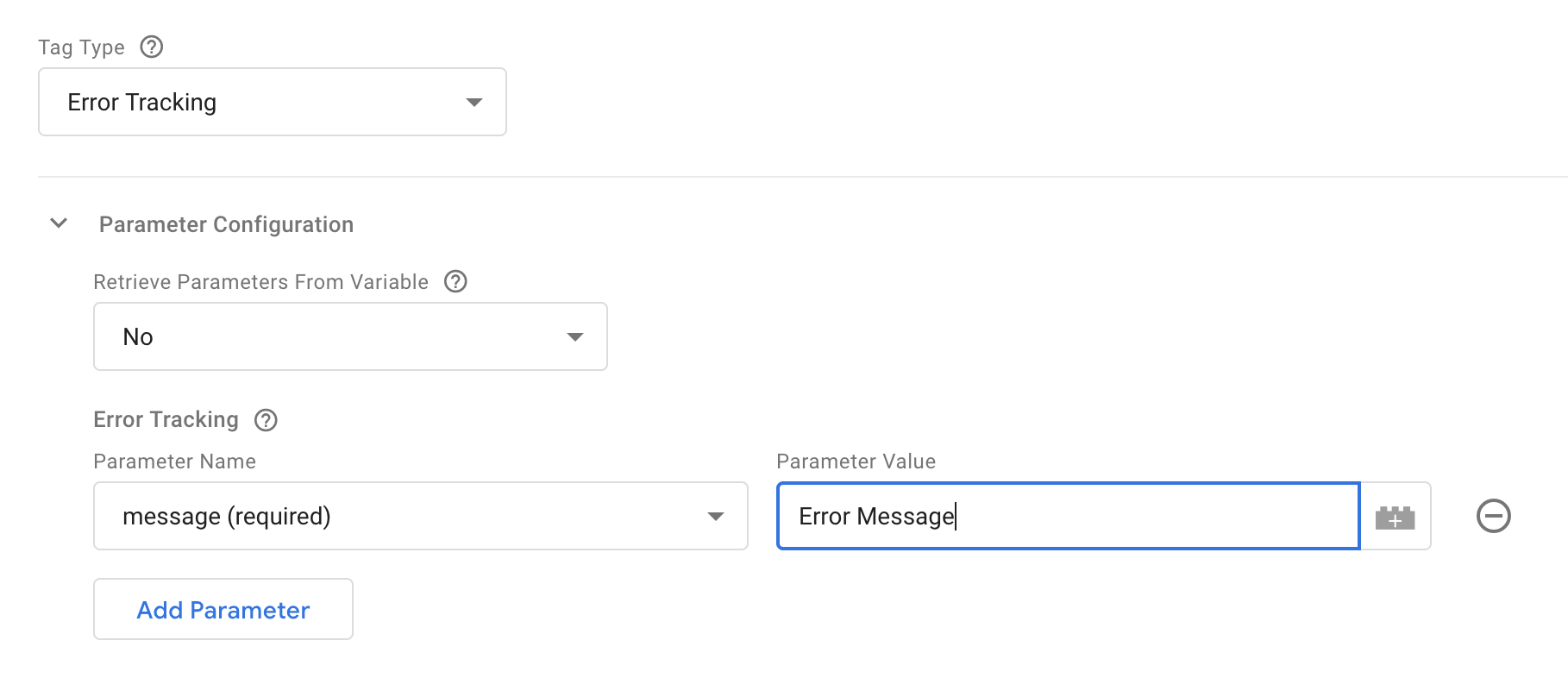
Some tag types will add additional selections to this section. Follow the official tracker documentation for more information about what each option does.
Special tags
Some tag types have special conditions and have been separated into their own configurations.
Enhanced Ecommerce
When you select Enhanced Ecommerce, you are left with two options: Use Data Layer or Choose Variable. The way it works is very similar to Enhanced Ecommerce in Google Analytics.
If you choose the first, the template will look into the dataLayer structure for the most recently pushed Enhanced Ecommerce object, and map this object to the request to Snowplow Analytics.
If you selected Choose Variable, you need to provide a GTM variable that returns an object in the correct, expected format.
For Google Analytics 4 compatible ecommerce tracking, see the dedicated Snowplow v3 Ecommerce Tag template instead.
Form Tracking
Form tracking has just two options, because filters and transformations won’t work with the custom template (due to lack of support for processing HTML elements). The options are to set form and/or field blacklists and whitelists.
Blacklists and whitelists for forms are a list of comma-separated HTML class names. If blacklisted, then any form element with a listed class will not trigger the form event. If whitelisted, then only form elements with a listed classname will be tracked.
For fields, blacklists and whitelists work similarly, except they use the name attribute rather than the class.
Note that this tag enables the tracker's native Form Tracking plugin, it does not directly fire an event. It is intended to trigger early on a page to begin listening for form events, not to trigger on form events like Form Submit Triggers.
Link Click Tracking
The Track Link Click event is similar to regular parameter-based events, as it lets you add parameters and track a link click as a manually encoded hit.
The Enable Automatic Link Click Tracking adds listeners to the page, which will track clicks on links permitting they adhere to the blacklisted/whitelisted class names you can optionally provide.
The Fix Middle-click Tracking adds a fix for some browsers where middle-clicks were not tracked properly.
If you check Track HTML Content Of Clicked Link, then the full text content of the link element will be sent to Snowplow as well.
Note that this tag enables the tracker's native Link Click Tracking plugin, it does not directly fire an event. It is intended to trigger early on a page to begin listening for click events, not to trigger on click events like Click Triggers.
Page View
You can provide a Custom Page Title if you wish, and you can add a custom context to the request, as also described here.
If you enable Page Activity Tracking, the tag will setup a heartbeat tracker, and send page pings to Snowplow at intervals that you can specify.
The Callback Function is something you can set to a JavaScript function. If you set the callback, then instead of sending the page ping to Snowplow, the function gets invoked instead.
Custom Commands
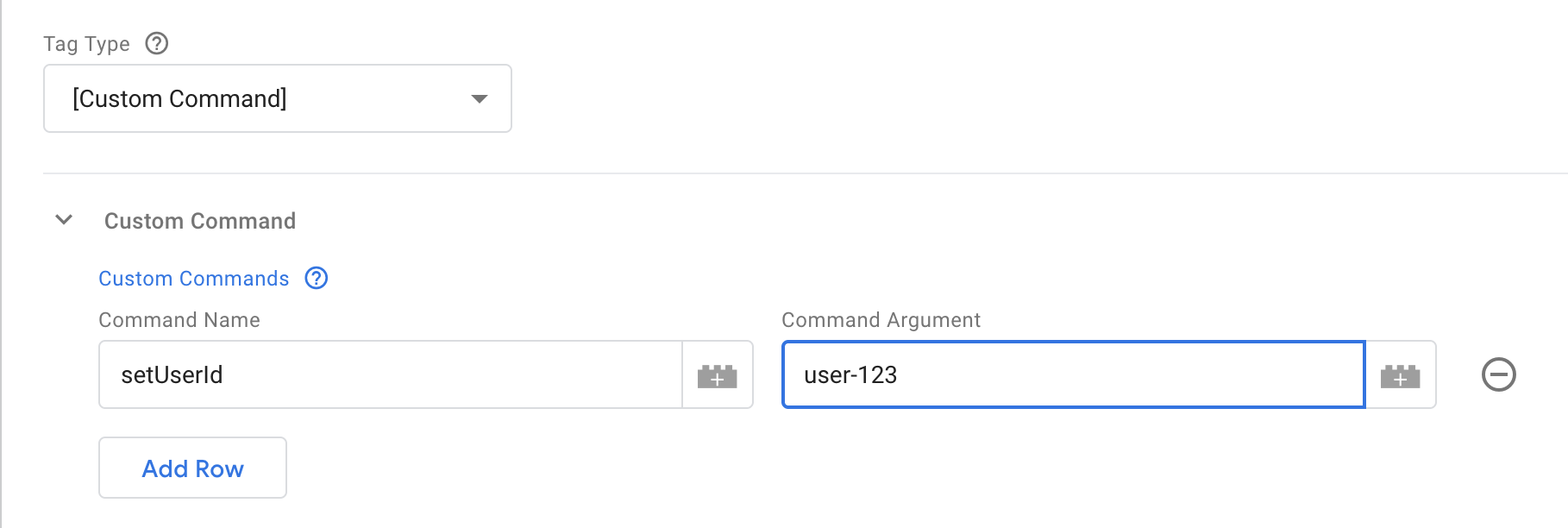
For any other commands which are supported by the Snowplow JavaScript Tracker v3, you can select the [Custom Command] option. Once select, you can enter any function name and the associated parameter for that function. The parameter can either be a simple string, in examples such as setUserId:
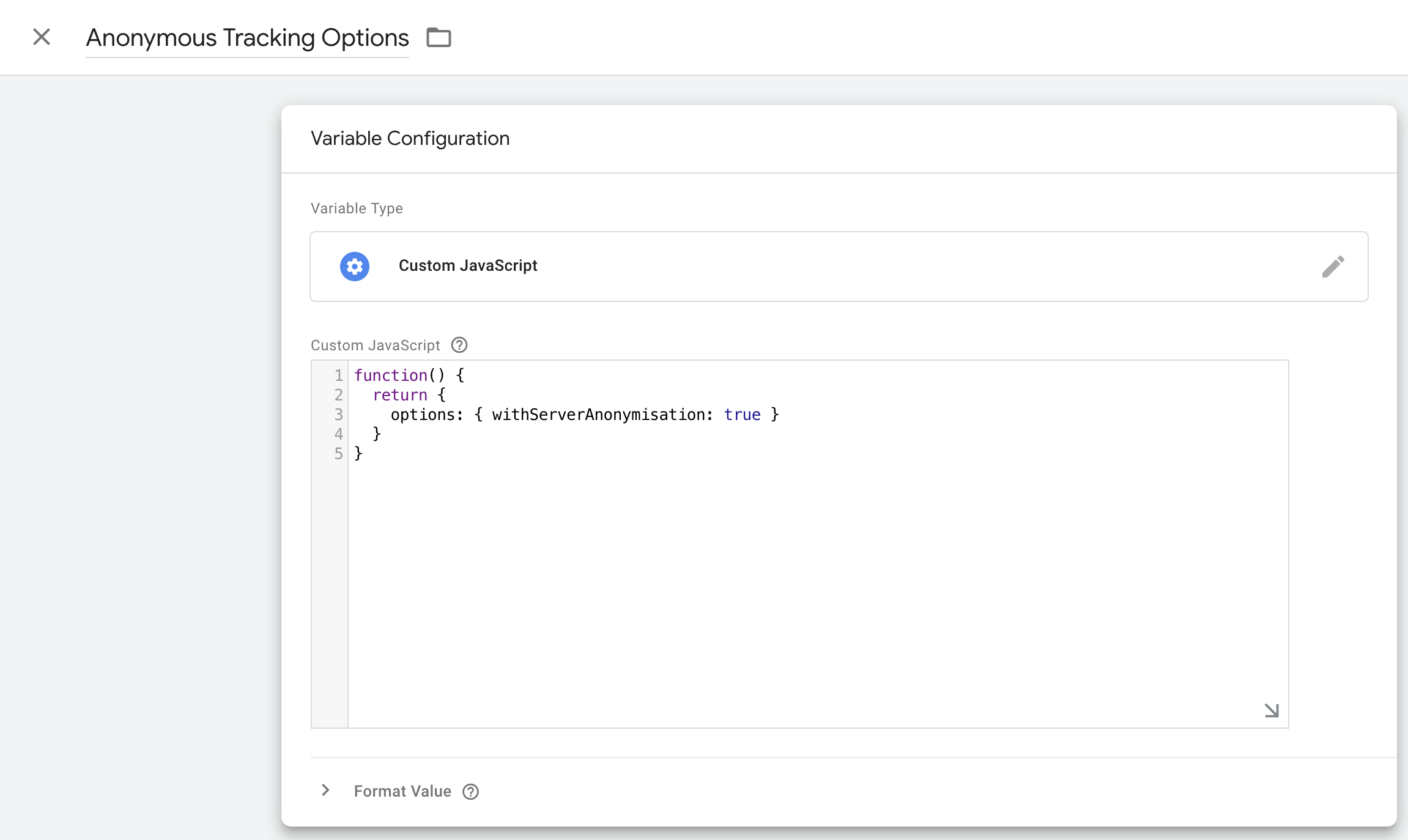
Or it can be set to a Custom JavaScript Variable in the instances where an Object should be passed to the function, such as with enableAnonymousTracking:
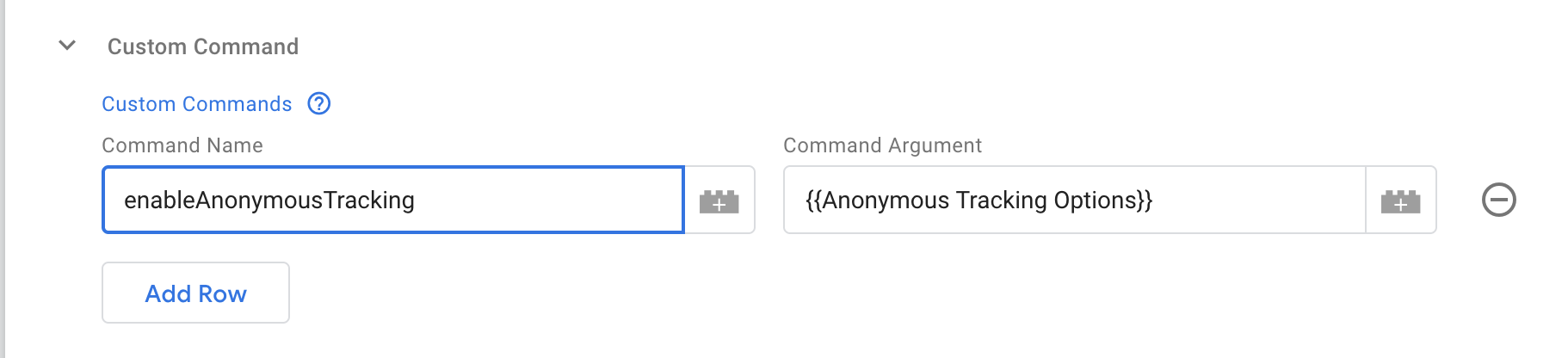
And then use this variable as your Command Argument:
Additional Tracking Parameters

Add Custom Context Entities
Using the Context Entities table allows you to attach custom context entities to the Snowplow event. Each row should be set to a variable value that must be an array of custom context objects that will all be concatenated to add to the Event.
Set Custom Timestamp
You can also choose to set the True Timestamp with this field. The format must be UNIX time in milliseconds.
Acknowledgements
Thanks to Simo Ahava for building the initial release of this template.