Define interventions to trigger real-time actions with Signals
Interventions are automated triggers that enable real-time actions based on user behavior. You'll need to define them, as described on this page, and subscribe to them in your application.
There are three methods for defining interventions in Signals:
- Snowplow Console UI
- Signals Python SDK
- Signals API
Signals has two types of interventions: rule-based interventions, which trigger automatically when their criteria are met, and direct interventions, which you push manually using the SDK or API.
- Console
- Python SDK
To create an intervention using the UI, go to Signals > Interventions in Snowplow Console and follow the instructions.
The first step is to specify:
- A unique name
- An optional description
- The email address of the primary owner or maintainer
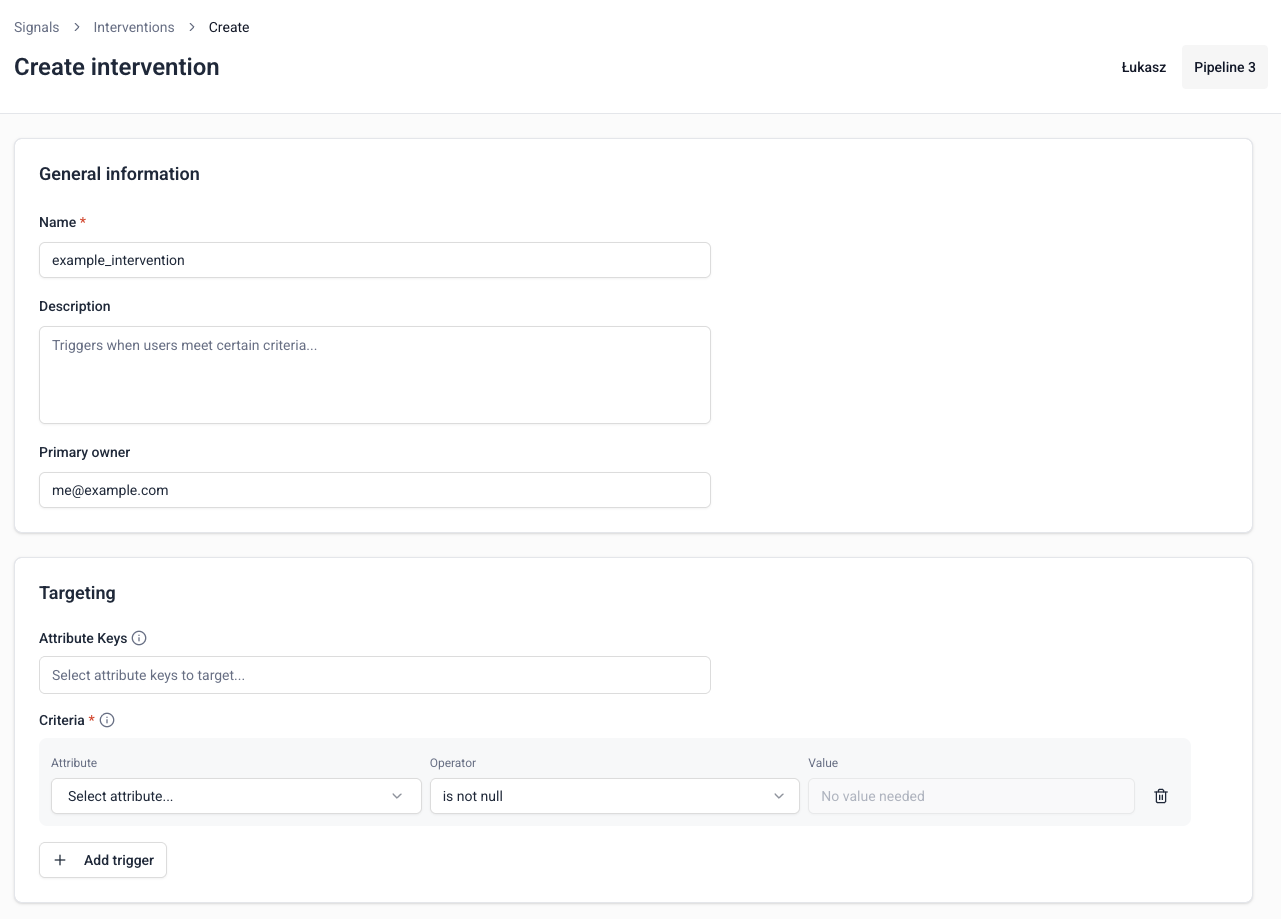
Next, configure when the intervention should trigger.
Start by connecting to Signals to create a Signals object. You'll need this connection to publish interventions.
Rule-based interventions use RuleIntervention objects. This is the minimum configuration needed to create an intervention definition:
from snowplow_signals import RuleIntervention, InterventionCriterion

hello_intervention = RuleIntervention(
    name="say_hello",
    owner="me@example.com",
    criteria=InterventionCriterion(
        attribute="example_group:test_attribute",
        operator="is not null",
    ),
)

sp_signals.publish([hello_intervention])
Once applied and active, this intervention will trigger the first time Signals processes an event that first sets the example_group attribute group's test_attribute attribute to a value that is not null (e.g. the first time it gets set).
The table below lists all available arguments for a RuleIntervention:
| Argument | Description | Type | Required? |
|---|---|---|---|
name | The unique name/identifier of the intervention | string | ✅ |
owner | Email address for the owner of this intervention definition | string | ✅ |
description | A human-readable description of the intervention | string | ❌ |
version | A numeric version for this definition | integer | ❌ |
target_attribute_keys | List of attribute key names to publish this intervention to. If not defined, defaults to the attribute keys associated with any attribute groups you reference in criteria. | string[] | ❌ |
criteria | Tree of Criterion expressions to evaluate against attribute key attributes | One of: InterventionCriterion, InterventionCriteriaAll, InterventionCriteriaAny, InterventionCriteriaNone | ✅ |
Criteria
Criteria are the conditional rules that determine when an intervention should trigger.
An intervention is sent only the first time the criteria are met. Read an example of how this works in the delivery example. The changed operator is the exception: it sends the intervention every time the attribute's value changes.
When a referenced attribute is updated, the updated and previous states are evaluated against the criteria. If the previous state did not meet the conditions but the newly updated state does, the trigger activates. Criteria always refer to the latest published version of the attribute group that contains the attribute.
- Console
- Python SDK
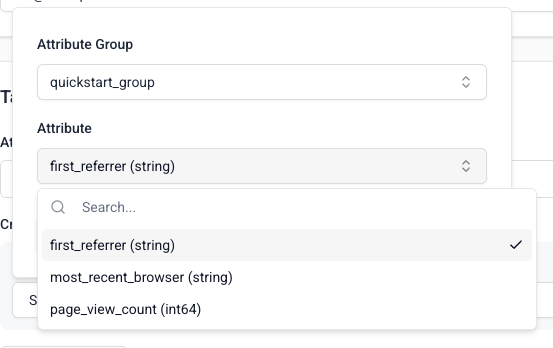
Defining intervention criteria has three steps:
- Select which attribute from a published attribute group to evaluate
- Choose which logical operator to use
- Enter the value to trigger on
When adding more than one criterion, you can require all or any of them to be met.
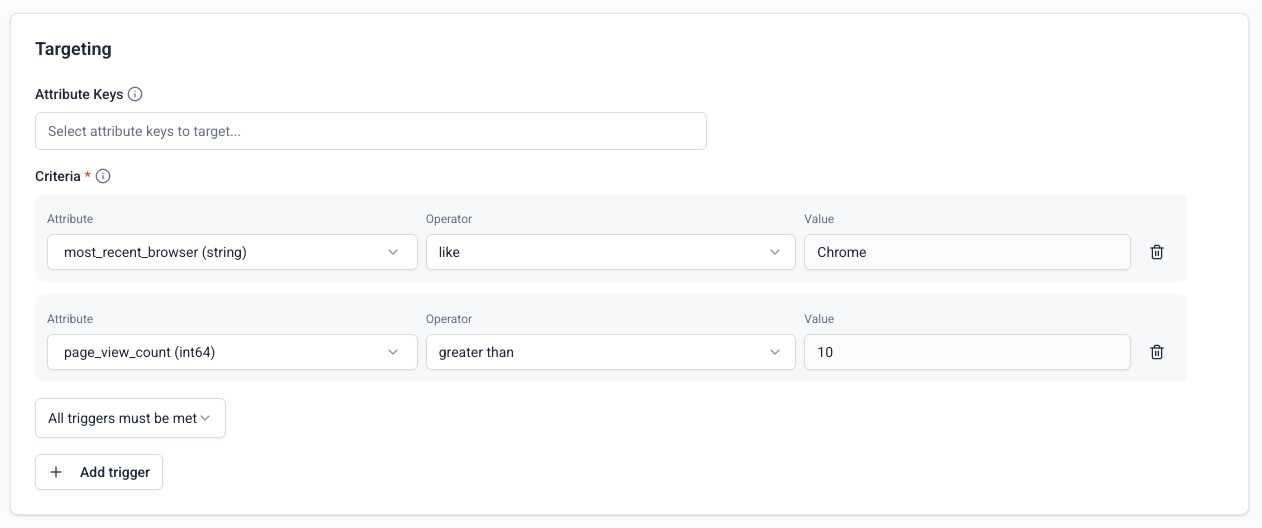
These attributes are both from groups with the domain_userid attribute key. Therefore, this intervention is targeted to users. When a subscribed user reaches 10 page views while using Chrome, the intervention will trigger.
The simplest criteria tree takes an InterventionCriterion instance, with possible arguments:
| Argument | Description | Type |
|---|---|---|
attribute | The attribute group and attribute name to evaluate, separated by a colon | string |
operator | The operator used for evaluating the attribute | str, see table below |
value | If required by the operator, the comparison value | str, int, float, bool, list[str], list[int], list[float], list[bool] or None |
This table shows the available operators:
| Operator | Description | Value is required? |
|---|---|---|
= | Equals | ✅ |
!= | Not equals | ✅ |
< | Less than | ✅ |
> | Greater than | ✅ |
<= | Less than or equal | ✅ |
>= | Greater than or equal | ✅ |
like | Pattern matching (SQL LIKE) | ✅ |
not like | Pattern not matching | ✅ |
rlike | Regex pattern matching | ✅ |
not rlike | Regex not matching | ✅ |
in | Value in list | ✅ (list) |
not in | Value not in list | ✅ (list) |
is null | Value is null/empty | ❌ |
is not null | Value exists | ❌ |
changed | Value changed | ❌ |
For more complex conditions, criteria also accepts InterventionCriteriaAll, InterventionCriteriaAny, and InterventionCriteriaNone.
You can use these classes to combine multiple criteria as lists with the following parameters:
| Argument | Description | Parameters |
|---|---|---|
InterventionCriteriaAll | Logically AND all the inner criteria. Only trigger if all the nested criteria are also true/triggered. | all: list of nested criteria |
InterventionCriteriaAny | Logically OR all the inner criteria. Only trigger if at least one of the nested criteria are true/triggered. | any: list of nested criteria |
InterventionCriteriaNone | Logically NOR all the inner criteria. Only trigger if all of the nested criteria are false/untriggered. | none: list of nested criteria |
These support nesting, so you can create complex conditions if required:
from snowplow_signals import (
    RuleIntervention,
    InterventionCriterion,
    InterventionCriteriaAll,
    InterventionCriteriaAny,
    InterventionCriteriaNone,
)

criteria = InterventionCriteriaAll(all=[
    InterventionCriterion(attribute="mygroup:pageview_count", operator=">=", value=3),
    InterventionCriteriaAny(any=[...]),
    InterventionCriteriaNone(none=[...]),
])
The changed operator
Most operators trigger an intervention the first time the criteria become true. The changed operator is different: it triggers every time the attribute's value changes, regardless of the new value. Use it to react to updates to an attribute, for example to re-fetch a user's profile whenever any of their attributes change.
changed takes no value. It triggers whenever the attribute's previous and current values differ, including when the attribute is set for the first time (from no value to its first value).
A few things to be aware of:
changedis only supported on its own or within anInterventionCriteriaAll(all) group. It can't be used inside ananyornonegroup, because those wouldn't reliably trigger on every change.- Change detection is best-effort. When many events for the same attribute key are processed at once, an intermediate change can occasionally be missed. The first change (from no value to a value) always triggers.
- The preview can't evaluate
changedagainst warehouse data, since it's a change over time rather than a condition on the current value. A preview treatschangedas always matching, so any other criteria still filter the count.
Target and payload
Interventions are delivered to attribute keys. By default, the intervention will target the attribute keys of the attribute groups defined in the criteria. Specify attribute keys if you want different targets.
Interventions can be defined against any attribute key, as long as its values are non-enumerable. For example, the built-in Snowplow attribute keys domain_userid, domain_sessionid, and network_userid are suitable targets since their values are canonically formatted UUIDs, e.g. 8c9104e3-c300-4b20-82f2-93b7fa0b8feb.
Custom targeting can be useful when you have broad criteria but want a more narrow target. For example, if your criteria use a broad attribute like page_id, you might not want to send the intervention to everyone on that page. If you're also checking user-specific criteria, target domain_userid to reach only the specific user who meets all conditions.
Another use for custom targeting is when you want to target an attribute key that's available in the triggering event, but isn't part of your intervention logic. For example, to send an intervention to a domain_userid when they do a certain number of things in a single pageview_id. By targeting the user rather than the page, you can ensure that the intervention is received even if they've gone onto a new page by the time the triggering event is processed, or if the application is not subscribed to the pageview_id.
- Console
- Python SDK
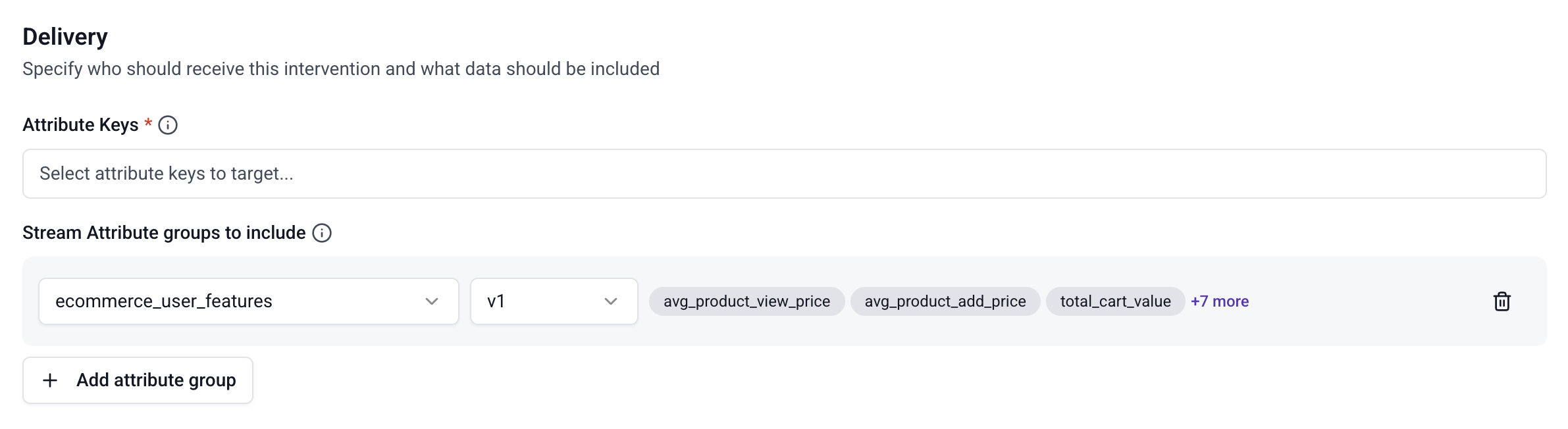
Define a custom intervention target scope by selecting attribute keys. These are the attribute keys that will receive the information.
You can also select one or more attribute groups to be sent with the intervention. When the intervention triggers, it will include the latest values for all attributes in the selected groups.
Use the target_attribute_keys argument to set custom targets. This example shows how to use criteria and targeting together:
from snowplow_signals import (
    RuleIntervention,
    InterventionCriterion,
    InterventionCriteriaAll,
    LinkAttributeKey,
)

cart_abandonment = RuleIntervention(
    name="cart_abandonment_discount",
    owner="marketing@company.com",
    description="Offer discount when high-value cart is abandoned",
    criteria=InterventionCriteriaAll(all=[
        InterventionCriterion(
            attribute="shopping:cart_value",
            operator=">",
            value=75.00
        ),
        InterventionCriterion(
            attribute="shopping:minutes_since_last_activity",
            operator=">=",
            value=15
        ),
    ]),
    target_attribute_keys=[
        LinkAttributeKey(name="domain_userid")
    ]  # Target individual users
)

sp_signals.publish([cart_abandonment])
It will trigger based on attribute changes within the shopping attribute group, but only if all conditions are met.
Publish and manage the intervention
Interventions only become active once published to your Signals infrastructure. Signals will then start monitoring attribute value changes. To receive and act on triggered interventions, your application will need an active subscription.
- Console
- Python SDK
Once you're happy with your intervention configuration, click Create intervention to save it. It will be saved as a draft, and not yet available to Signals.
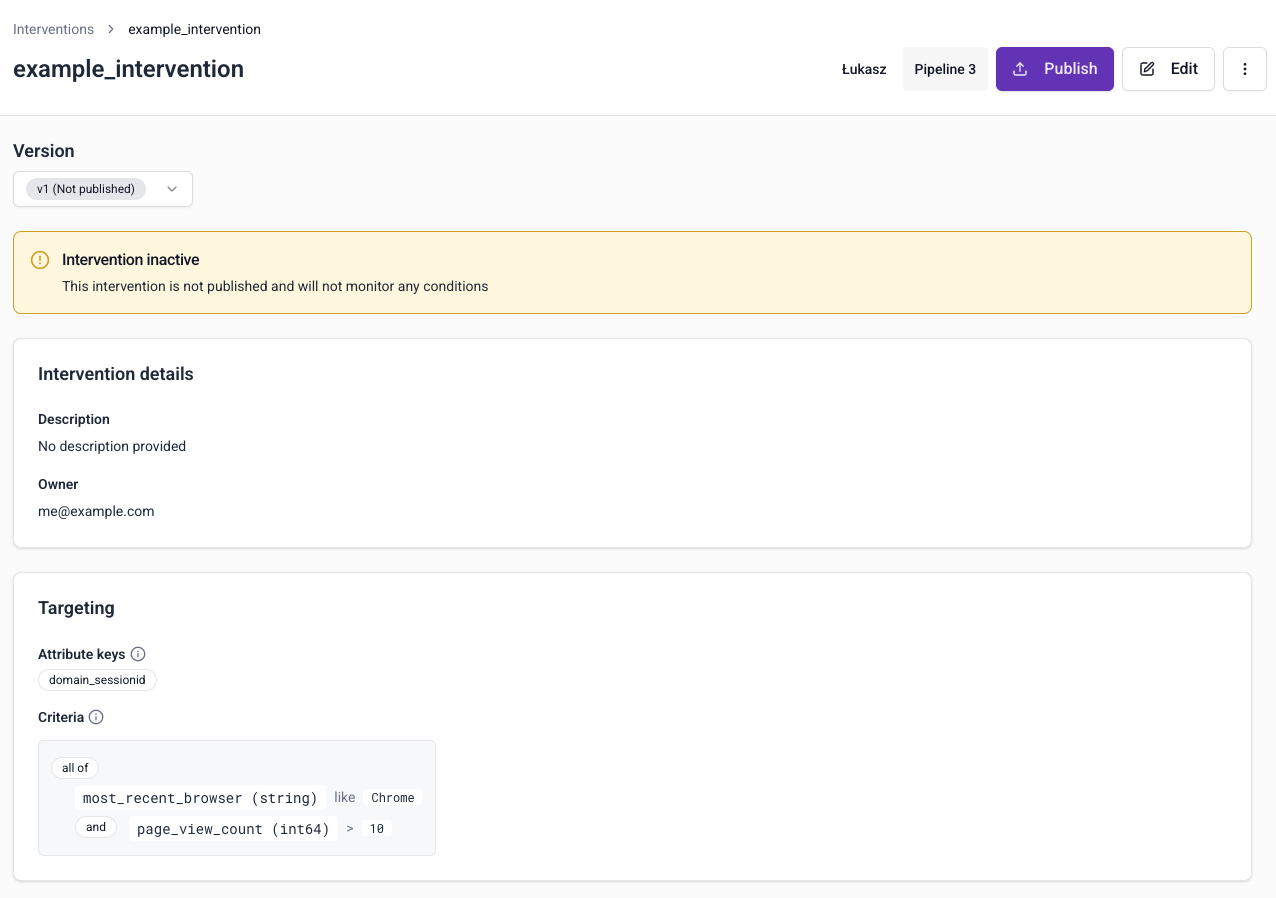
Click the Edit button if you want to make changes to the intervention.
To send the intervention configuration to your Signals infrastructure, click the Publish button.
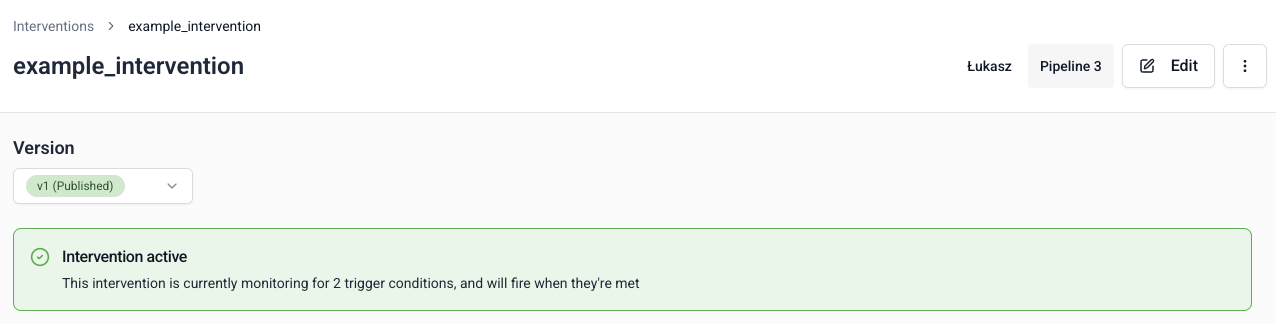
The intervention page also includes sample code to help you subscribe to it. Read more about this on the subscription page.
Use publish() to register rule-based interventions with Signals:
sp_signals.publish([hello_intervention])
Versioning
Interventions are versioned. This allows you to iterate on the definitions without breaking downstream processes. All interventions start as v1.
Within criteria, the attributes are always evaluated based on the latest published version of the attribute group that contains the attribute. For example, if attribute_group v1, v2, and v3 all have the required attribute, v3 will be used. If you then publish attribute_group v4, which removes attribute, v3 will still be used.
- Console
- Python SDK
If you make changes to the definition, the version will be automatically incremented.
Use version=1 for the first version of an intervention. After publishing, if you want to change the definition in any way, iterate the version number.
Unpublish or delete
To unpublish or delete an intervention in Console, click the ⋮ button on the details page.

Unpublishing is version specific. You can republish it later if needed. Choose Delete to permanently delete all versions of the intervention.
With the Python SDK, use the unpublish() and delete() methods.
Test the intervention
Signals provides two ways to test an intervention in Snowplow Console: a preview you can run before publishing, and a live test you can trigger once the intervention is published.
Preview
While defining an intervention, you can preview how many users would have received it by running it against the current state of your warehouse data. Click Run preview to see how many attribute keys match the criteria you've defined.

Send a test intervention
Once the intervention is published, you can send a test by specifying a particular attribute key identifier. Signals will dispatch an intervention to that identifier so you can verify your subscription is set up correctly and diagnose any connection errors before relying on it in production. Your application must already be subscribed to that attribute key ID to receive the test.

Direct interventions
Direct interventions have no criteria, and are not tied to attribute values. They use InterventionInstance objects, and are pushed to Signals using push_intervention, rather than being published like other configuration objects.
Direct interventions are only available using the Signals Python SDK or Signals API. They use the API's api/v1/registry/interventions endpoints under the hood, which require a valid, authorized bearer token.
You can directly push these interventions to any attribute keys. If the intervention is valid, Signals will immediately deliver it to any subscribers for the targeted attribute key IDs.
from snowplow_signals import AttributeKeyIdentifiers, InterventionInstance, Signals

# The specific attribute key IDs to publish the intervention to
targets = AttributeKeyIdentifiers({
  "domain_sessionid": ["8c9104e3-c300-4b20-82f2-93b7fa0b8feb"],
})

sp_signals.push_intervention(
  targets,
  InterventionInstance(
    name="my_intervention",
    version=1,
  )
)
For an overview of interventions and the destinations they can reach, see real-time triggers on the Signals site.
Signals calculates attributes from events flowing through a Snowplow pipeline. If you don't have one, you can start on the Signals free tier. It needs no credit card.