Verify and refine
The assistant reports success, but the real test is whether the configuration exists in your Snowplow account and produces values. In this step you'll verify both, then make your first conversational edit.
Confirm the group in Console
In Snowplow Console, go to Signals > Attribute groups. You should see tut_mcp_session_metrics in the list, at version 1, with a published status.
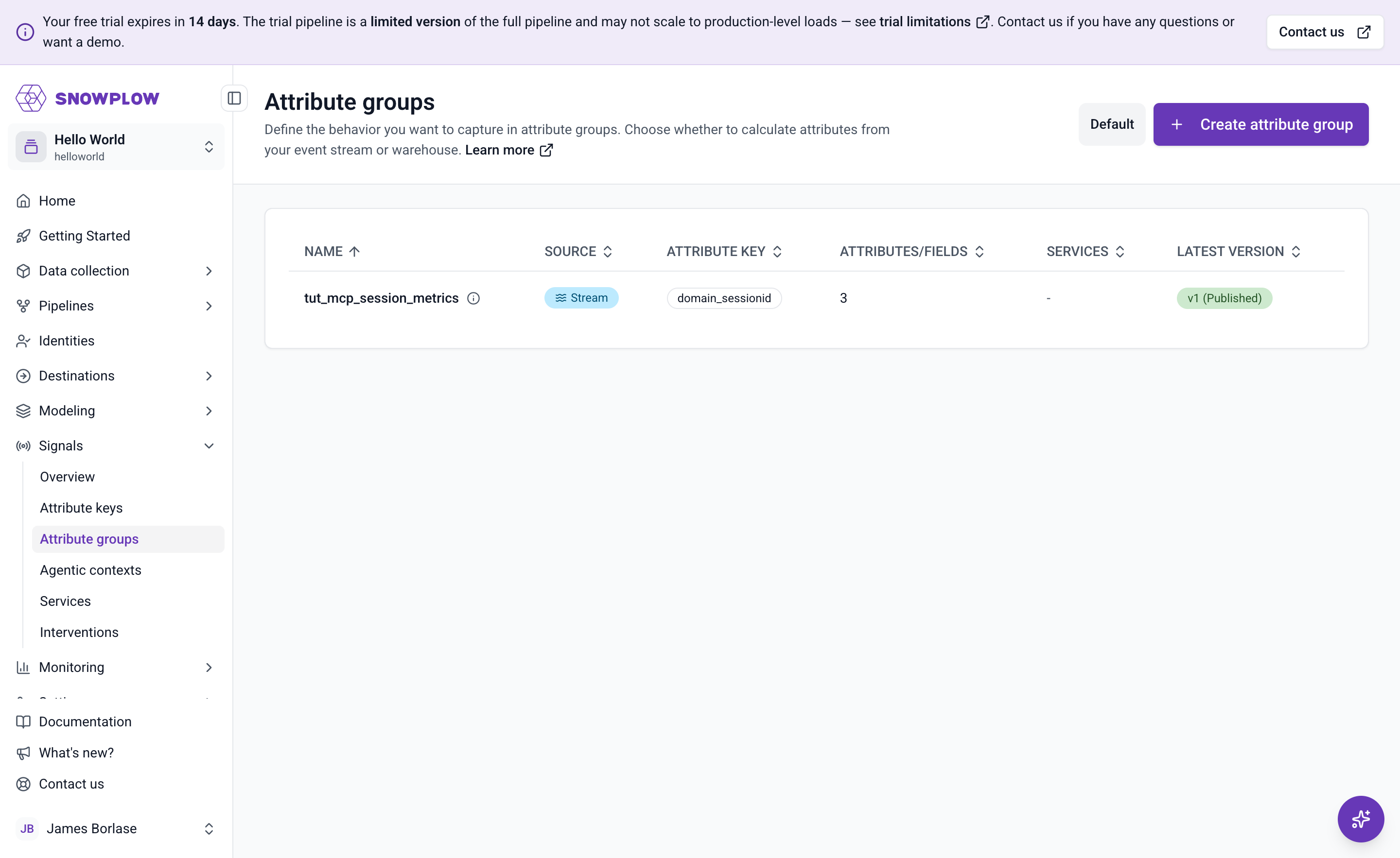
Open it and check the definition against what you reviewed in the previous step:
- Attribute key:
domain_sessionid page_view_count: counter ofpage_viewevents, 15-minute periodmost_recent_browser: lastagentNamefrom theyauaa_contextentityfirst_referrer: firstrefr_urlhost, filtered to non-empty referrers
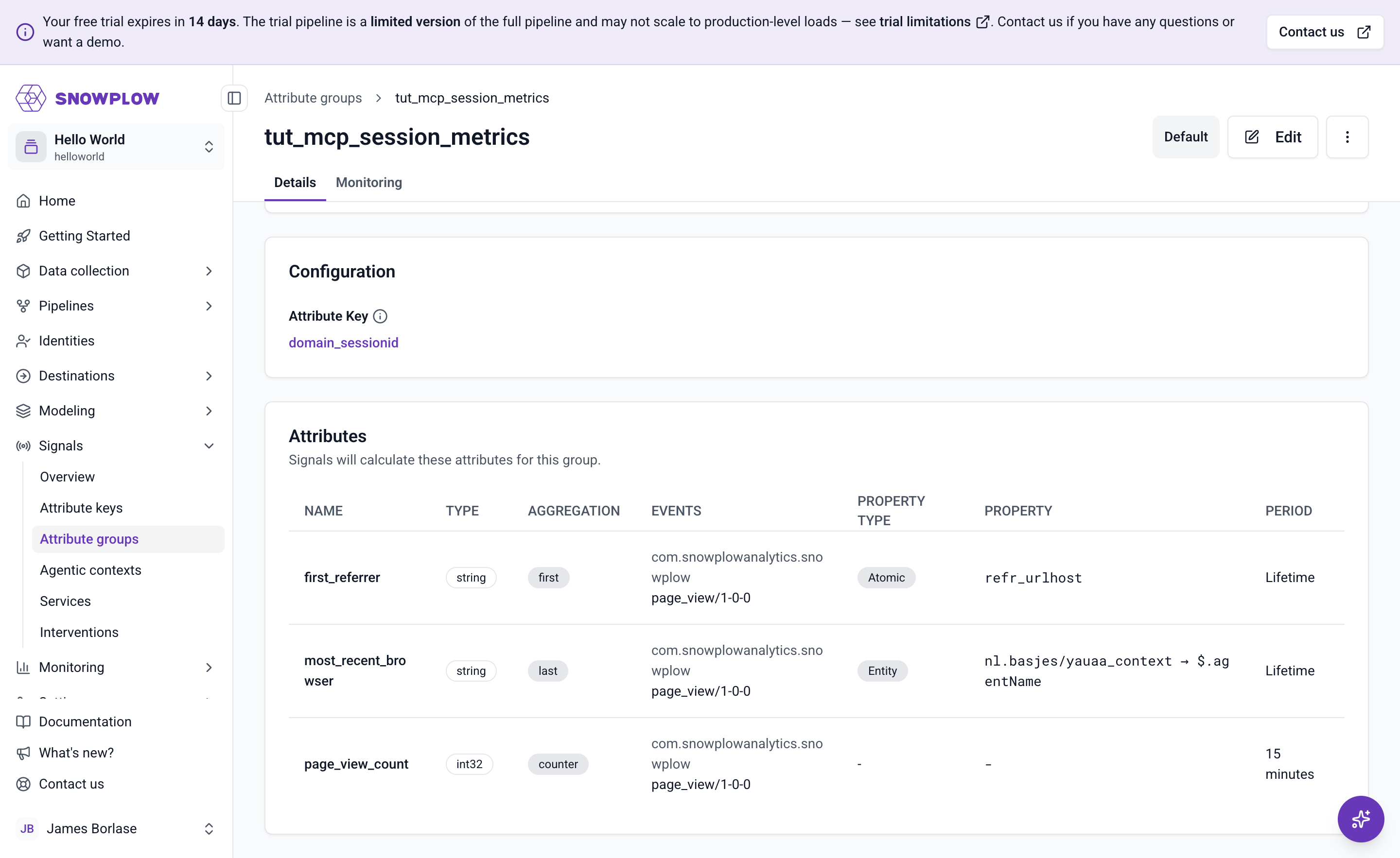
This is the same screen you'd have used to build the group by hand in the quick start. Groups built in the Console UI, with the Python SDK, or by an AI assistant all land in the same registry, so Console shows you what's actually deployed regardless of how it got there.
Watch the attribute values in Snowplow Inspector
The configuration is right, but that doesn't prove Signals is calculating anything. To see the real values, use the Snowplow Inspector browser extension, which reads them from the same Profiles Store your applications will query.
First, connect the extension to Signals. Open the Signals integration by logging in to Snowplow Console through the extension. It then detects the Signals instances for every organization you have access to. To let it fetch attribute values, add API credentials for each organization in the extension's options, which you reach from your browser's extensions menu by selecting Options for Snowplow Inspector.
Once connected, the Inspector uses the Signals API to discover your attribute keys and attribute group definitions, and matches them against the events it observes in the debugger. Because tut_mcp_session_metrics is keyed on domain_sessionid, the extension collects the domain_sessionid values from your page views and requests attributes for each one, so there's no session ID for you to copy by hand.
Now generate some data. With the Inspector open, browse your tracked website and view a few pages, then switch to the Attributes tab in the column of tabs down the left-hand side of the extension. You should see tut_mcp_session_metrics listed, with the three attributes and the values calculated for your session:
page_view_countmatching the number of pages you viewed in the last 15 minutesmost_recent_browsershowing your browser, such asChromefirst_referrershowing the host you arrived from, or empty if you navigated directly
Each attribute group in the list shows its organization, environment, version, and source in the top-right, so you can confirm you're looking at the version you just published. Click any attribute row to expand the JSON definition behind it, and click again to collapse it.
While you stay on the Attributes tab, new events refresh the values automatically. A final refresh runs five seconds after the events stop, to allow for processing latency. View another page and watch page_view_count increase. If the values still look stale, use the refresh button at the top to request them again.
You can also ask the assistant for the same lookup: give it a session ID from the Inspector's Events tab and ask what the current attribute values are, and it reads them from the Profiles Store for you. Reading the values in the Inspector first keeps the verification independent of the assistant that made the change.
Stream attribute groups only calculate from events that arrive after you publish, so events from before that point won't appear. If the list stays empty, check that the extension is observing your page views on the Events tab first, and that you added API credentials for the right organization in the extension's options.
Add an attribute and publish a new version
Attribute groups rarely stay finished. Ask the assistant to extend the group:
Add a most_recent_page_title attribute to tut_mcp_session_metrics: the last
seen page title for the session.
Assistant:
[calls signals_get_attribute_group]
[calls signals_create_attribute_group]

Created tut_mcp_session_metrics version 2 as a draft, with the three existing
attributes plus most_recent_page_title (string, last aggregation on the
page_title atomic field). Version 1 is still published and calculating.
You can't change a published version. Once a group is live, editing it produces the next version rather than altering the one in production. So the assistant carries the existing definition over, adds your new attribute, and saves the result as version 2 in draft. Version 1 keeps running untouched while you review, exactly as when you created the group.
Publish the new version once you're happy with it:
Looks good. Publish version 2.
Assistant:
[calls signals_publish]

Published tut_mcp_session_metrics version 2. Version 1 is still published, so
both versions are calculating now.
Publishing version 2 doesn't retire version 1. Each version is a separate deployment that consumers ask for by name, as in tut_mcp_session_metrics_v2:page_view_count. Versioning exists so that applications reading version 1 carry on working while you test version 2. Attributes whose definitions haven't changed share their calculation between versions, so version 2's page_view_count reports the same values as version 1. Only the new most_recent_page_title attribute starts fresh, and it fills in from the next page view. Once nothing reads the old version any more, ask the assistant to unpublish it.
Every attribute group starts at v1, and each edit-and-publish cycle on a live group produces the next version, so nothing in production changes underneath its consumers. Bear this in mind when you name a version in a service or a retrieval call. Adding an attribute means there's a newer version to point at. See versioning for how versions behave.
Verify the change the same way as before. The new version's page in Console lists four attributes:
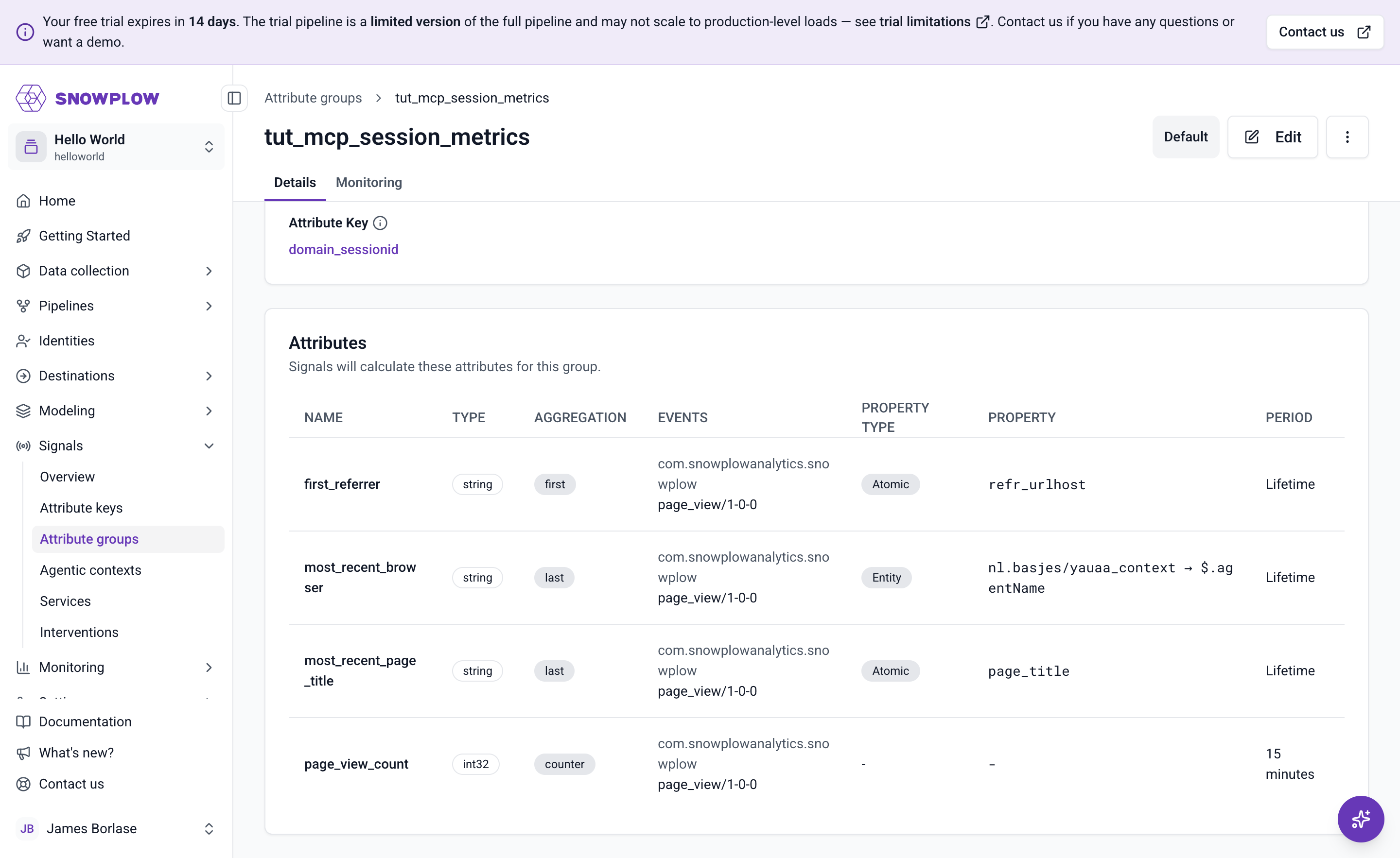
Back in the Inspector, the Attributes tab fetches the highest version of each group by default. View another page and you'll see most_recent_page_title alongside the original three, with the version shown in the group's top-right corner. To compare against version 1, switch to it from the same listing. It appears as an option now that the group has more than one version.
You've now completed the full loop: defined, tested, published, verified, and extended a Signals attribute group without leaving your assistant, with every change confirmed in Console or in the Inspector.