Configure the Snowplow Ecommerce Tag
Use the native Snowplow Ecommerce API or transitional GA4/UA ecommerce adapter APIs for existing dataLayer implementations using those formats. To get full value from the Snowplow Ecommerce plugin we recommend using the native API when possible.
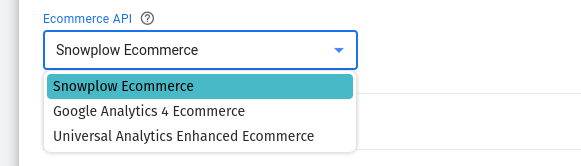
Tracking Parameters
- Snowplow Ecommerce
- GA4 Ecommerce
- Universal Analytics Enhanced Ecommerce
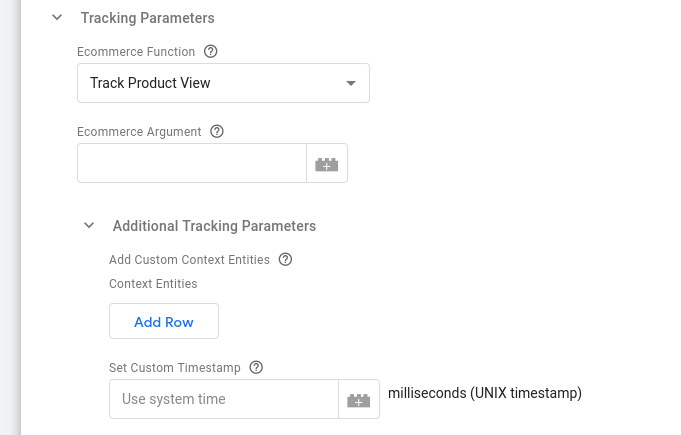
Snowplow Ecommerce Function
In this section you can select the Snowplow Ecommerce function to use.
Snowplow Ecommerce Argument
In this textbox you can specify the argument to the ecommerce function. This can be a Variable that evaluates to a corresponding object.
Additional Tracking Parameters
Add Custom Context Entities
Use this table to attach custom context entities to the Snowplow event. Each row can be set to a Google Tag Manager variable that returns an array of custom contexts to add to the event hit.
Set Custom Timestamp
Set this to a UNIX timestamp in case you want to override the default timestamp used by Snowplow.
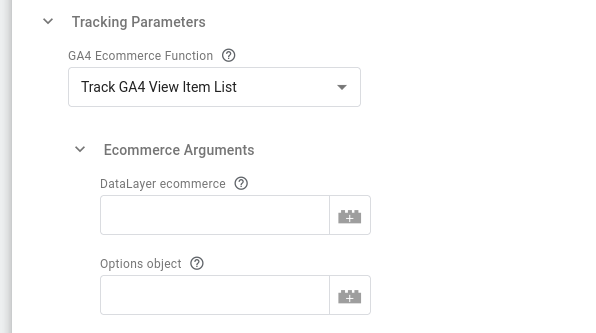
GA4 Ecommerce Function
In this section you can select the Google Analytics 4 Ecommerce function to use.
GA4 Ecommerce Arguments
DataLayer ecommerce
Here you can specify the dataLayer ecommerce variable to use, i.e. a variable that returns the ecommerce object itself.
Options object
Here you can specify a variable returning an object holding additional information for the ecommerce event (e.g. including currency, finalCartValue, step, etc).
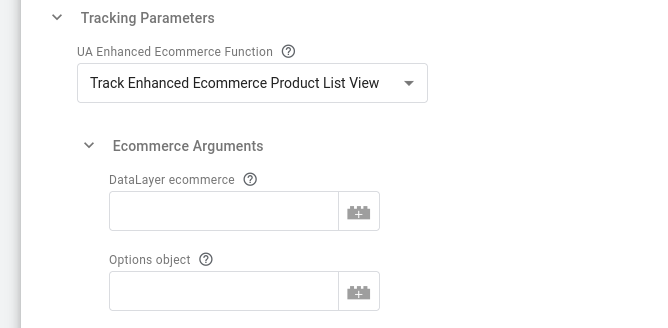
Universal Analytics Enhanced Ecommerce Function
In this section you can select the Universal Analytics Enhanced Ecommerce function to use.
Universal Analytics Enhanced Ecommerce Arguments
DataLayer ecommerce
Here you can specify the dataLayer ecommerce variable to use.
Options object
Here you can specify a variable returning an object holding additional information for the ecommerce event (e.g.including currency, finalCartValue, step etc).
Snowplow Tracker and Ecommerce Plugin Settings

Tracker Settings
The Snowplow Ecommerce tag template requires a Snowplow Settings Variable to be setup. In this section you can select the Google Tag Manager variable of type Snowplow Settings to use.
Plugin Settings
In this section you can select how the plugin will be added. The available options are:
jsDelivr: To get the plugin URL from jsDelivr CDN. Choosing this option allows you to specify the plugin version to be used.unpkg: To get the plugin URL from unpkg CDN. Choosing this option allows you to specify the plugin version to be used.Self-hosted: To get the plugin library from a specified URL. This option requires a Permission change to allow injecting the plugin script from the specified URL.Do not add: To not add the plugin (e.g. when using a Custom Bundle with the plugin already included). The default plugins bundled with the JavaScript tracker has changed from v3 to v4. Ensure that all plugins that you require are included. A list of the default plugins is available here.