Define and receive interventions to trigger real-time actions with Signals
Interventions are automated triggers that enable real-time actions based on user behavior. You'll need to define and subscribe to them.
There are three methods for defining interventions in Signals:
- Snowplow Console UI
- Signals Python SDK
- Signals API
To create an intervention using the UI, go to Signals > Interventions in Snowplow Console and follow the instructions.
The first step is to specify:
- A unique name
- An optional description
- The email address of the primary owner or maintainer
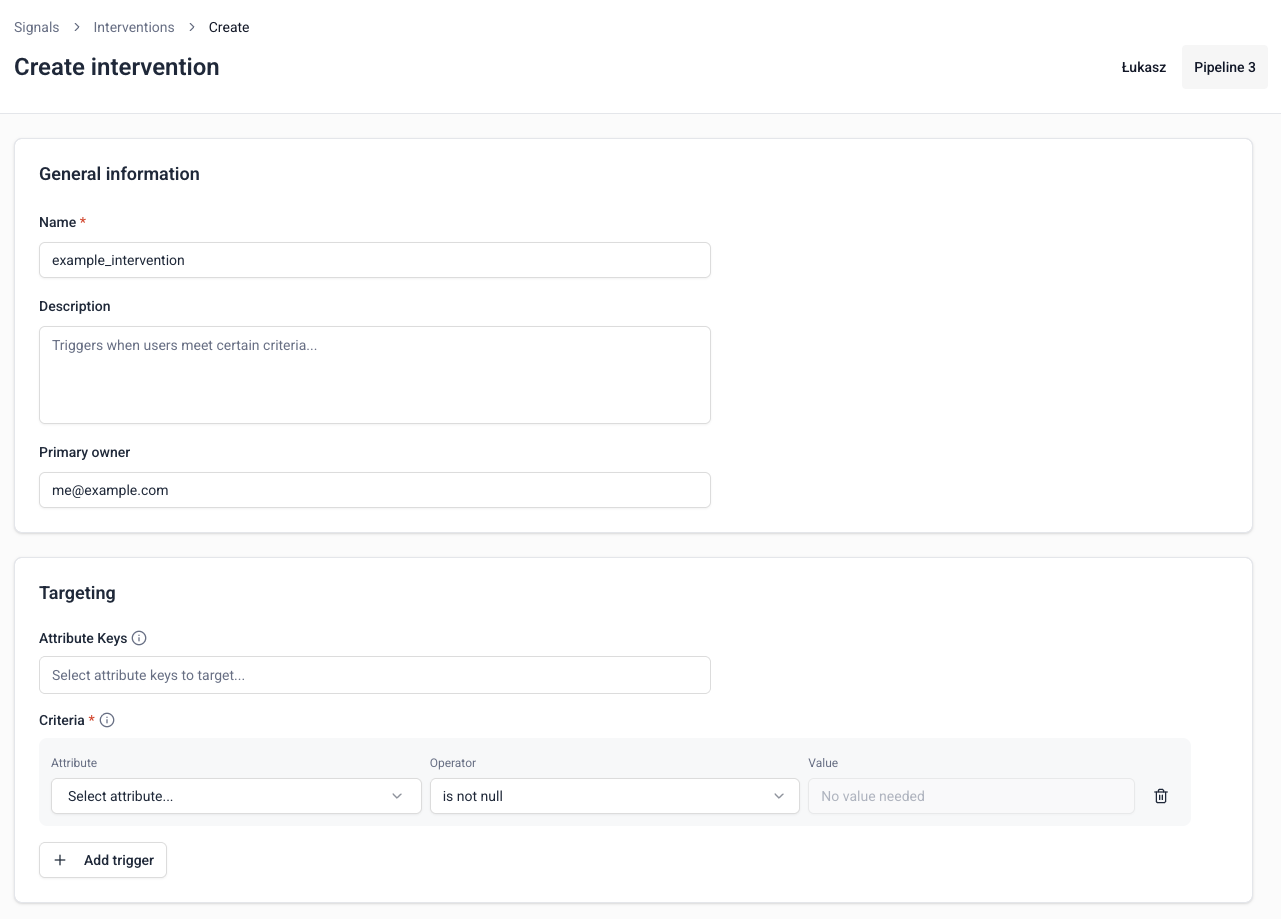
Next, configure when the intervention should trigger.
Criteria
Criteria are the conditional rules that determine when an intervention should trigger.
An intervention is sent only the first time the criteria are met. Read an example of how this works on the Concepts page.
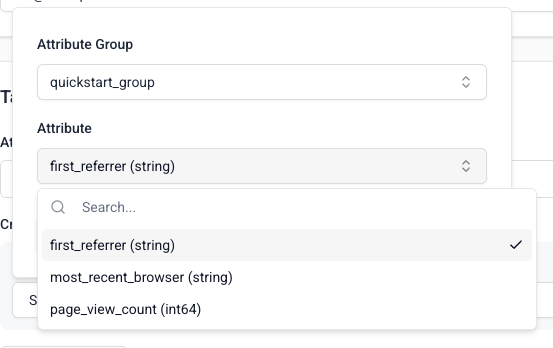
Defining intervention criteria has three steps:
- Select which attribute from a published attribute group to evaluate
- Choose which logical operator to use
- Enter the value to trigger on
When adding more than one criteria, you can require all or any of them to be met.
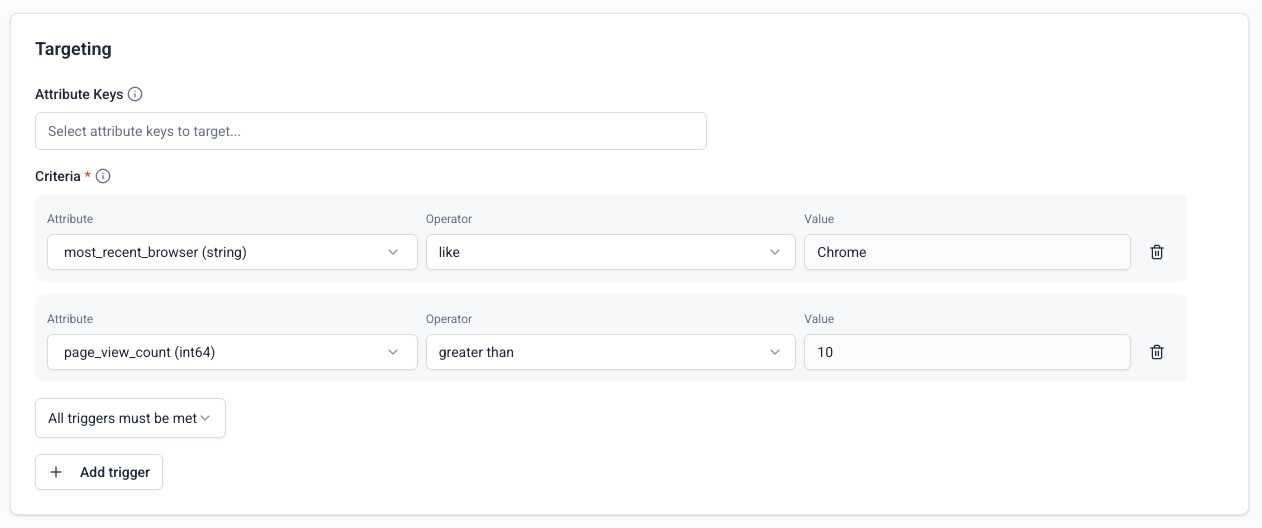
These attributes are both from groups with the domain_userid attribute key. Therefore, this intervention is targeted to users. When a subscribed user reaches 10 page views while using Chrome, the intervention will trigger.
Target and payload
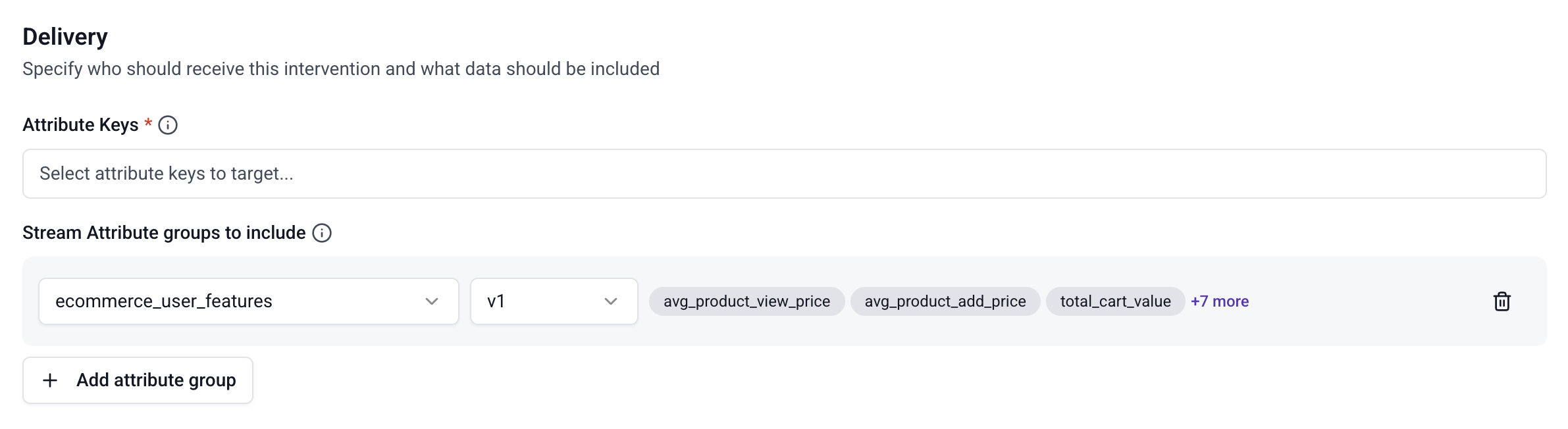
Define a custom intervention target scope by selecting attribute keys. These are the attribute keys that will receive the information.
By default, the intervention will target the attribute keys of the attribute groups defined in the criteria. Specify attribute keys here if you want different targets.
You can also select one or more attribute groups to be sent with the intervention. When the intervention triggers, it will include the latest values for all attributes in the selected groups.
Publishing the intervention
Once you're happy with your intervention configuration, click Create intervention to save it. It will be saved as a draft, and not yet available to Signals.
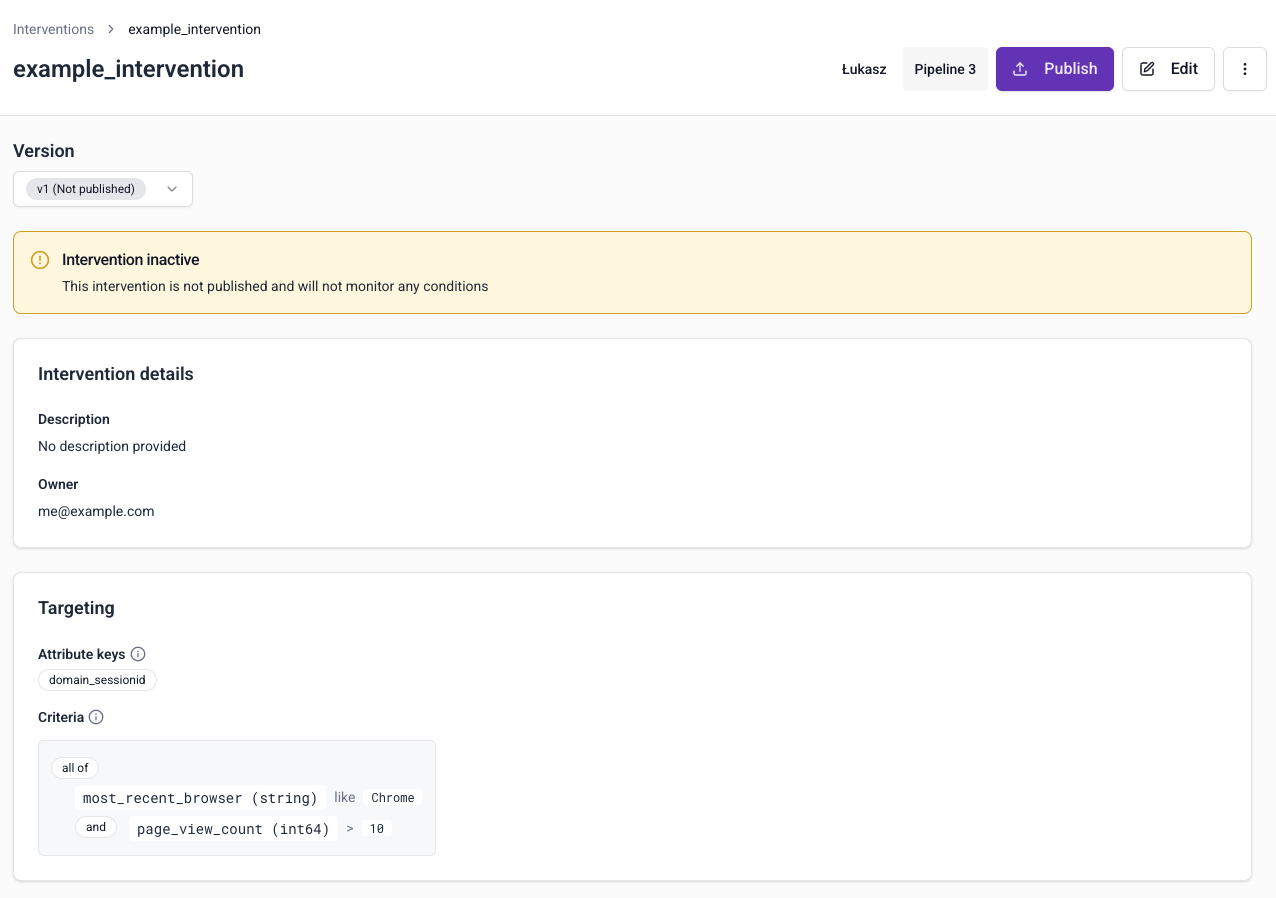
Click the Edit button if you want to make changes to the intervention.
To send the intervention configuration to your Signals infrastructure, click the Publish button. This will allow Signals to start monitoring attribute value changes.
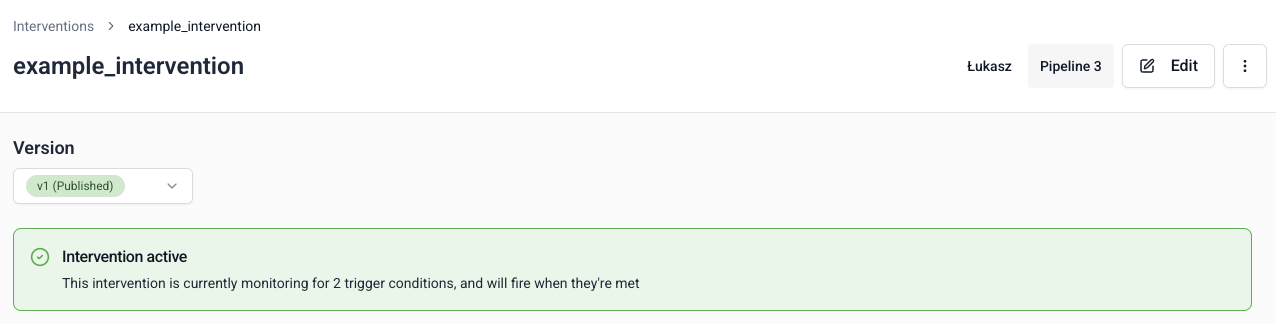
The intervention page also includes sample code to help you subscribe to it. Read more about this in the receiving interventions page.
Versioning
Interventions are versioned. This allows you to iterate on the definitions without breaking downstream processes. All interventions start as v1. If you make changes to the definition, the version will be automatically incremented.
Within criteria, the attributes are always evaluated based on the latest published version of the attribute group that contains the attribute. For example, if attribute_group v1, v2, and v3 all have the required attribute, v3 will be used. If you then publish attribute_group v4, which removes attribute, v3 will still be used.
Testing
Signals provides two ways to test an intervention: a preview you can run before publishing, and a live test you can trigger once the intervention is published.
Preview
While defining an intervention, you can preview how many users would have received it by running it against the current state of your warehouse data. Click Run preview to see how many attribute keys match the criteria you've defined.

Send a test intervention
Once the intervention is published, you can send a test by specifying a particular attribute key identifier. Signals will dispatch an intervention to that identifier so you can verify your subscription is set up correctly and diagnose any connection errors before relying on it in production.

Deleting an intervention
To unpublish or delete an intervention, click the ⋮ button on the details page.

Unpublishing is version specific. You can republish it later if needed. Choose Delete to permanently delete all versions of the intervention.