Define attribute groups
Define the behavior you want to capture in attribute groups. Choose whether to calculate attributes from your event stream or sync pre-calculated values from your warehouse.
- Console
- Python SDK
To create an attribute group, go to Signals > Attribute groups in Snowplow Console and follow the instructions.
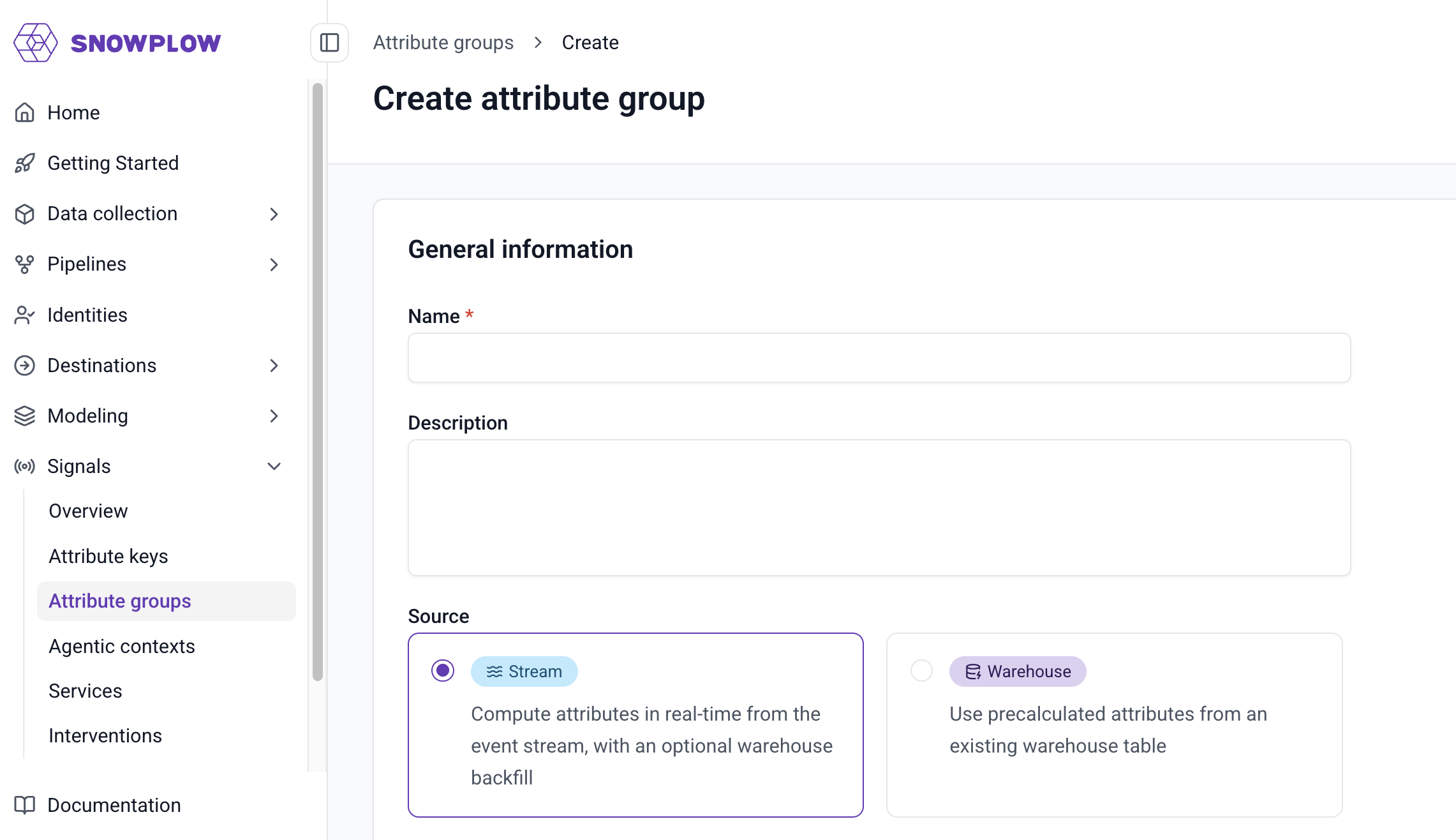
The first step is to specify:
- A unique name
- An optional description
- The email address of the primary owner or maintainer
- Which data source you want to use
Use a StreamAttributeGroup to calculate attributes from the real-time event stream.
from snowplow_signals import StreamAttributeGroup, domain_sessionid

my_stream_attribute_group = StreamAttributeGroup(
    name="my_stream_attribute_group",
    version=1,
    attribute_key=domain_sessionid,
    owner="user@company.com",
    attributes=[
        # Previously defined attributes
        page_view_count,
        products_added_to_cart_feature,
    ],
)
Define the attribute group
An attribute group definition has several parts, described in this section. The most important choice is the data source, which determines how attributes are calculated and which options are available.
Data source
There are two sources to choose from:
- Console
- Python SDK
- Stream: real-time Snowplow event stream, with an optional warehouse backfill
- Warehouse: pre-calculated values in a warehouse table that you sync to the Profiles Store
StreamAttributeGroup: calculates attributes from the real-time event stream, with an optional backfillExternalBatchAttributeGroup: syncs pre-calculated values from an existing warehouse table to the Profiles Store
Attribute groups are configured differently based on the data source.
Stream
Signals calculates attributes from events in your real-time stream. Check out the quick start tutorial for a step-by-step guide.
You'll need to define the attributes you want to calculate from your event stream.
Backfill attributes
Stream attribute groups only calculate attributes from the moment they are published. If you want to include historical data, enable backfill when creating the group.
- Console
- Python SDK
A warehouse connection is required to use the backfill option. Snowflake, BigQuery, and Databricks are supported.
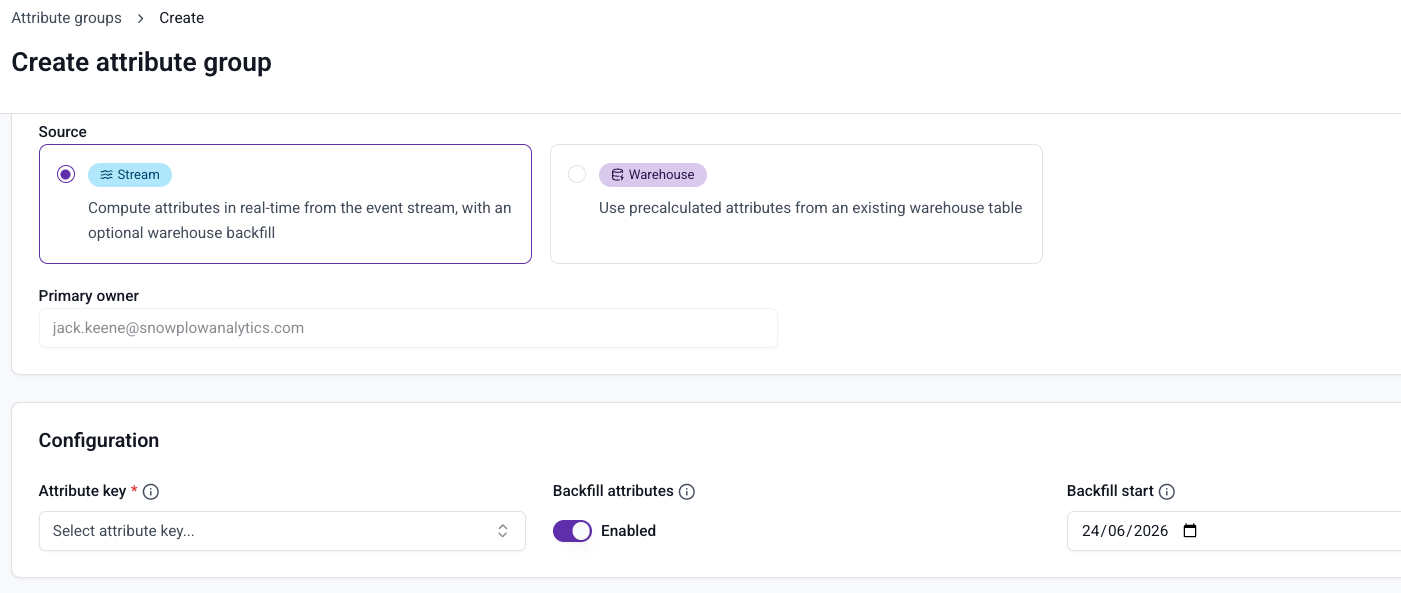
Enable Backfill attributes when creating the group. A date picker appears — select the date from which Signals should backfill attribute values from your Snowplow atomic events table. On publish, Signals backfills all events from that date up to the publish timestamp using your warehouse, based on the load_tstamp column.
Backfill operates within a defined period: from your selected start date to the publish timestamp. This can take some time depending on data volume. The streaming engine starts immediately on publish and processes all new events in real time. Once backfill completes its defined period, only the streaming engine is active. You can monitor progress with the status bar in Snowplow Console.
Set backfill_since_tstamp on your StreamAttributeGroup to specify the earliest date to backfill from. This date is matched against the load_tstamp column of your Snowplow atomic events table, the time each event was loaded into your warehouse.
from datetime import datetime, timezone
from snowplow_signals import StreamAttributeGroup, domain_userid

my_stream_attribute_group = StreamAttributeGroup(
    name="my_stream_attribute_group",
    version=1,
    attribute_key=domain_userid,
    owner="user@company.com",
    attributes=[page_view_count],
    backfill_since_tstamp=datetime(2025, 1, 1, tzinfo=timezone.utc),
)
Warehouse
Attribute groups with a warehouse source don't require attribute definition, as no calculation is performed. This source type syncs existing, pre-calculated warehouse values to your Profiles Store using the batch engine.
See Warehouse configuration for full configuration details.
- Console
- Python SDK
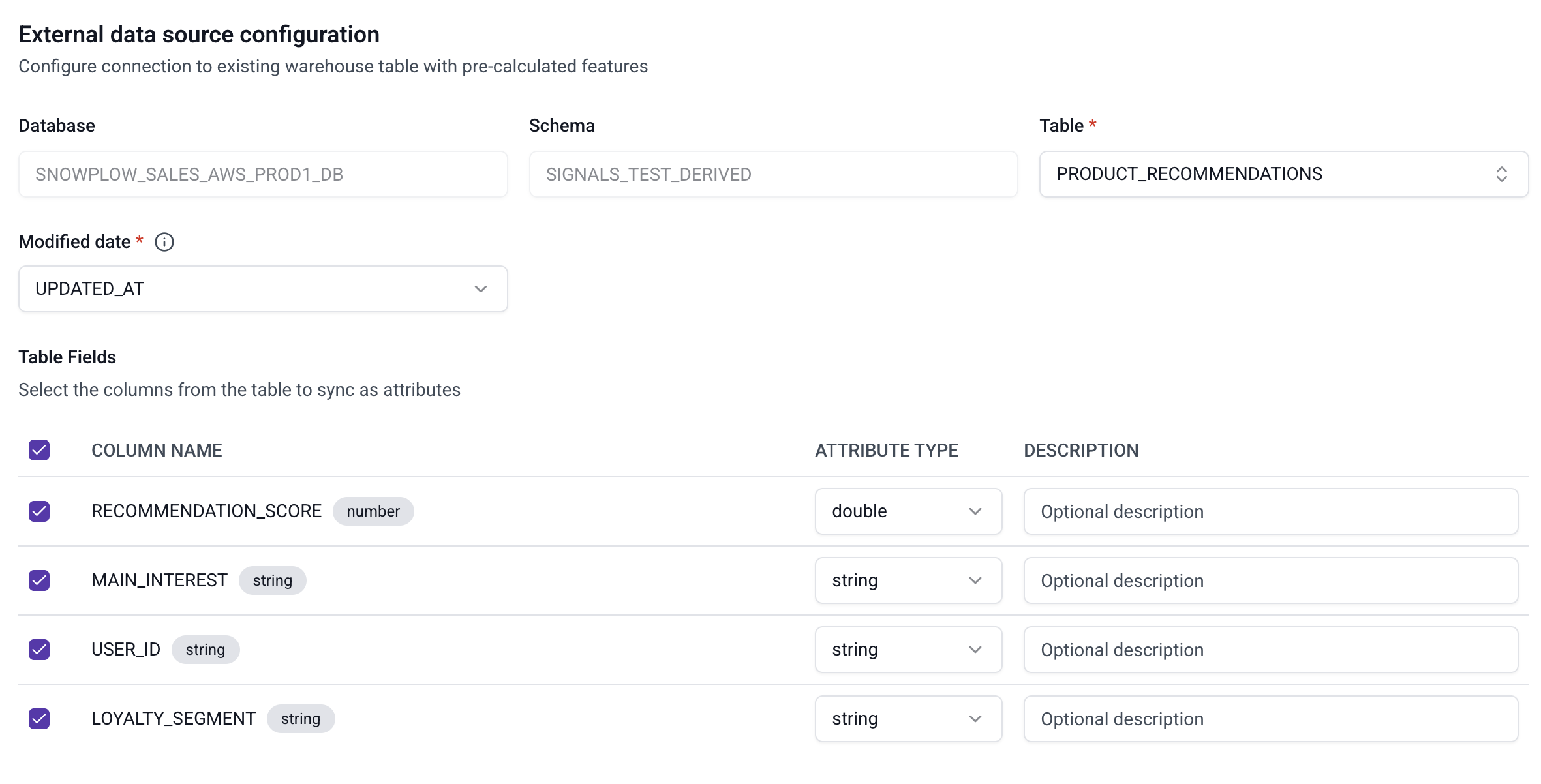
Provide the warehouse and table details, and select which fields you want to send to Signals.
Use ExternalBatchAttributeGroup instead of StreamAttributeGroup. See Warehouse configuration for the full SDK reference.
Attribute group options
- Console
- Python SDK
Configure the attribute group fields described at the top of this page. Additional options such as backfill are covered in the sections below.
The table below lists all available arguments for StreamAttributeGroup:
| Argument | Description | Type | Default | Required? |
|---|---|---|---|---|
name | The name of the attribute group | string | ✅ | |
version | The version of the attribute group | int | 1 | ❌ |
attribute_key | The attribute key associated with the attribute group | AttributeKey | ✅ | |
owner | The owner of the attribute group | Email | ✅ | |
description | A description of the attribute group | string | ❌ | |
ttl | Time-to-live for attributes in the Profiles Store | timedelta | ❌ | |
attributes | List of attributes to calculate | list of Attribute | ✅ | |
online | Calculate attributes (True) or not (False) | bool | True | ❌ |
backfill_since_tstamp | How far in time to backfill from | datetime | ❌ |
Use the online property to control whether Signals should actively compute the attributes, or just register the configuration. If you only want to publish the attribute group definitions without calculating attribute values yet, set online=False.
Attribute keys
All attribute groups need an attribute key. See Attribute keys for details on using built-in keys and creating custom ones.
Attribute lifetimes
For stream attribute groups, data retention is controlled by the period configured on each attribute. Attributes with a rolling period retain data for the duration of that period. Attributes with a Lifetime period use a configurable TTL (time-to-live) to control how long stale values persist.
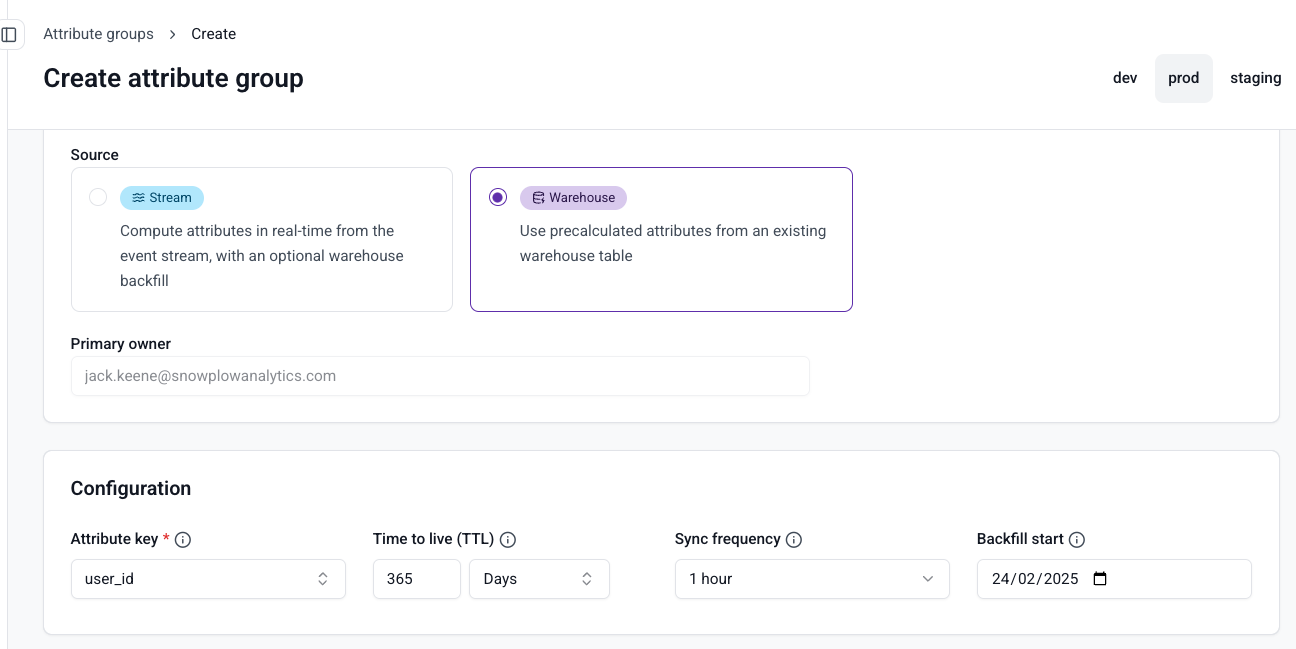
For warehouse attribute groups, TTL is configured at the group level. The default is 365 days.
When an attribute has not been updated for its defined TTL, its value is deleted: fetching it will return a None value. If Signals then processes a new event that updates the attribute, or syncs new data from the warehouse, the expiration timer is reset.
- Console
- Python SDK
Configure a TTL when creating or updating a warehouse attribute group.
Set ttl on your attribute group using a timedelta:
from datetime import timedelta
from snowplow_signals import StreamAttributeGroup, user_id

stream_attribute_group = StreamAttributeGroup(
    name="comprehensive_stream_attribute_group",
    version=2,
    attribute_key=user_id,
    owner="data-team@company.com",
    attributes=[page_view_count, session_duration],
    ttl=timedelta(days=90),
)
Test attribute definitions
After defining one or more attributes for stream attribute groups, you can test the configuration before publishing. This outputs a table of attributes calculated from your atomic events table, using a random subset of events from the last hour.
A warehouse connection is required to test attribute definitions.
- Console
- Python SDK
Click the Run preview button in the bottom right corner.
Use the test() method.
from snowplow_signals import Signals

sp_signals = Signals({{ config }})

test_data = sp_signals.test(
    attribute_group=my_attribute_group,
    app_ids=["website"]
)
To inspect an existing attribute group's definition, use get_attribute_group():
attribute_definitions = sp_signals.get_attribute_group(
    name="my_attribute_group",
    version=1,
)
print(attribute_definitions)
| Argument | Description | Type | Required? |
|---|---|---|---|
name | The name of the attribute group | string | ✅ |
version | The attribute group version | int | ❌ |
If you don't specify a version, Signals retrieves the latest version.
Publish attribute groups
- Console
- Python SDK
Click Create attribute group to save it as a draft.
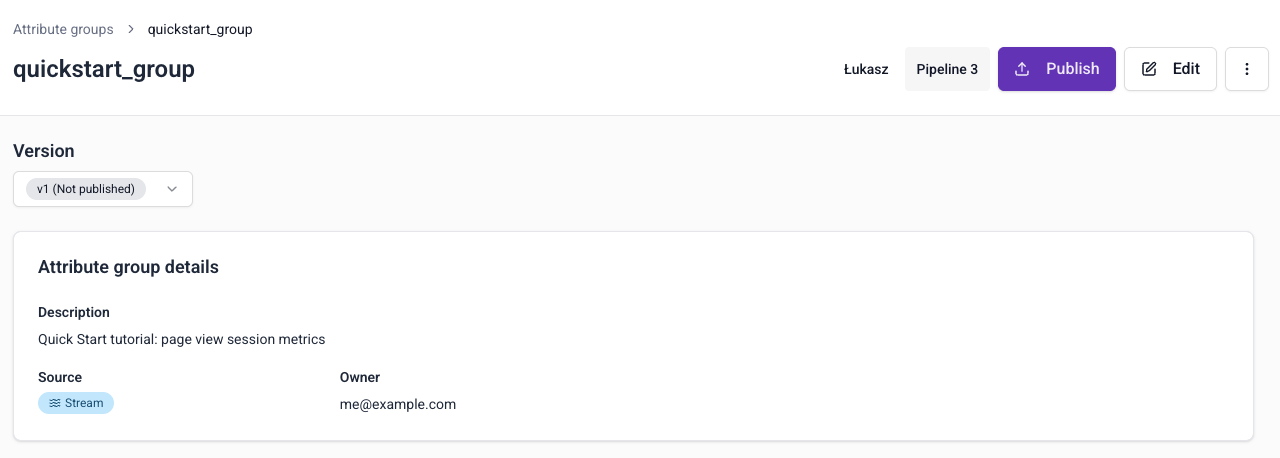
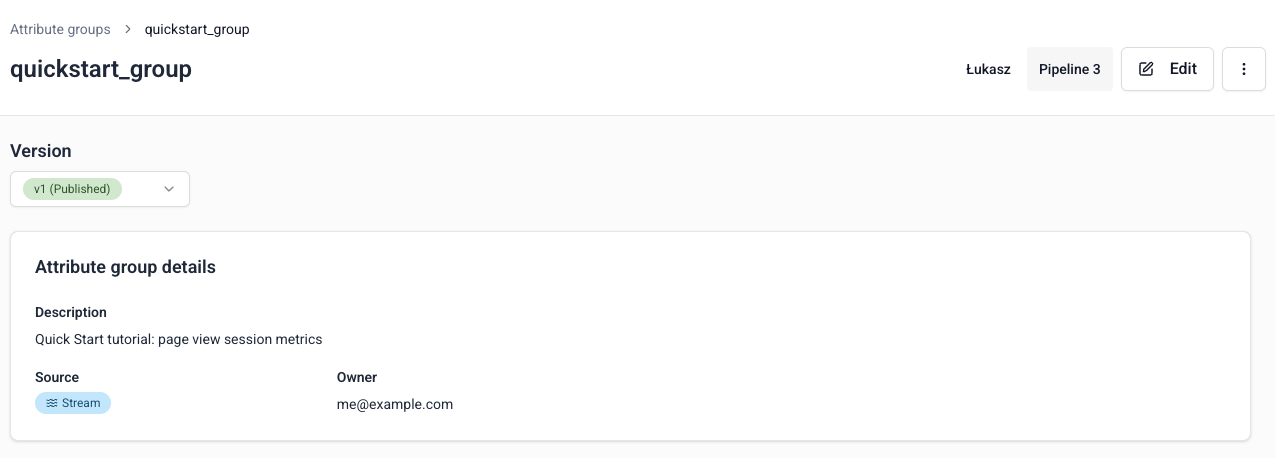
Click Edit to make changes. To send the configuration to your Signals infrastructure, click Publish. This allows Signals to start calculating attributes or syncing tables, and populating the Profiles Store.
Use publish() to register attribute groups with Signals.
from snowplow_signals import Signals

sp_signals = Signals({{ config }})

sp_signals.publish([
    my_attribute_group,
    my_other_attribute_group,
])
Once published, Signals starts calculating attribute values and storing them in the Profiles Store. To use them, retrieve the attributes in your application, typically via a service.
Versioning
Attribute groups are versioned, which allows you to iterate on definitions without breaking downstream processes. You'll select specific attribute group versions when you define services.
- Console
- Python SDK
All attribute groups start as v1. If you make changes to the definition, the version is automatically incremented when you edit and republish.
Use version=1 for the first version. After publishing, if you want to change the definition, increment the version number manually.
Delete an attribute group
- Console
- Python SDK
To unpublish or delete an attribute group, click the ⋮ button on the group details page.

Unpublishing is version specific. It stops Signals from calculating attributes for that version, but existing attribute values remain in your Profiles Store. You can republish it later if needed.
Choose Delete to permanently delete all versions of the attribute group, along with attribute values in your Profiles Store for this group.
If the attribute group version is used by a service, you'll need to update the service definition before unpublishing or deleting.
If the attribute group version is used by a published intervention, deleting or unpublishing it will unpublish the intervention.
Use unpublish() to stop active calculation without losing the attribute group definition. You can republish it later if needed.
Use delete() to permanently remove the attribute group and its calculated attribute values from the Profiles Store. You must unpublish before deleting.
# Unpublish
sp_signals.unpublish([my_attribute_group])

# Delete permanently (must unpublish first)
sp_signals.delete([my_attribute_group])
Signals calculates attributes from events flowing through a Snowplow pipeline. If you don't have one, you can start on the Signals free tier. It needs no credit card.