Create failed event alerts in Console
Set up failed event alerts to receive notifications when failed events occur in your data pipeline.
You'll need access to the data quality dashboard.
To create an alert, go to Snowplow Console:
- Navigate to Data Quality in the left sidebar
- Click Manage alerts in the top-right corner
- Click Create alert
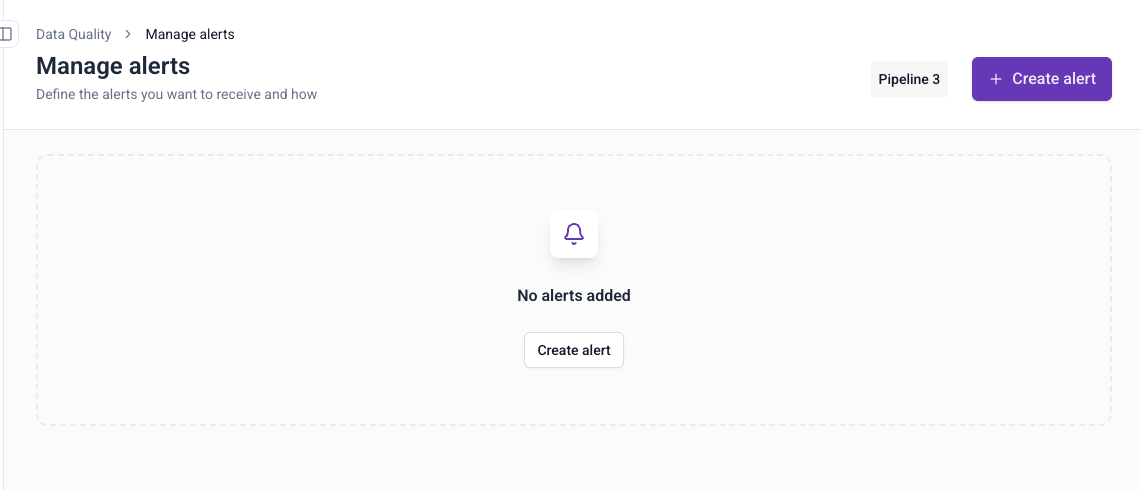
Configure destination
Choose how you want to receive notifications:
Email notifications
- Select Email as destination
- Add recipient email addresses
- Click Add filters to configure filters
- Configure triggers as needed
- Enter alert name (e.g., "mobile-app")
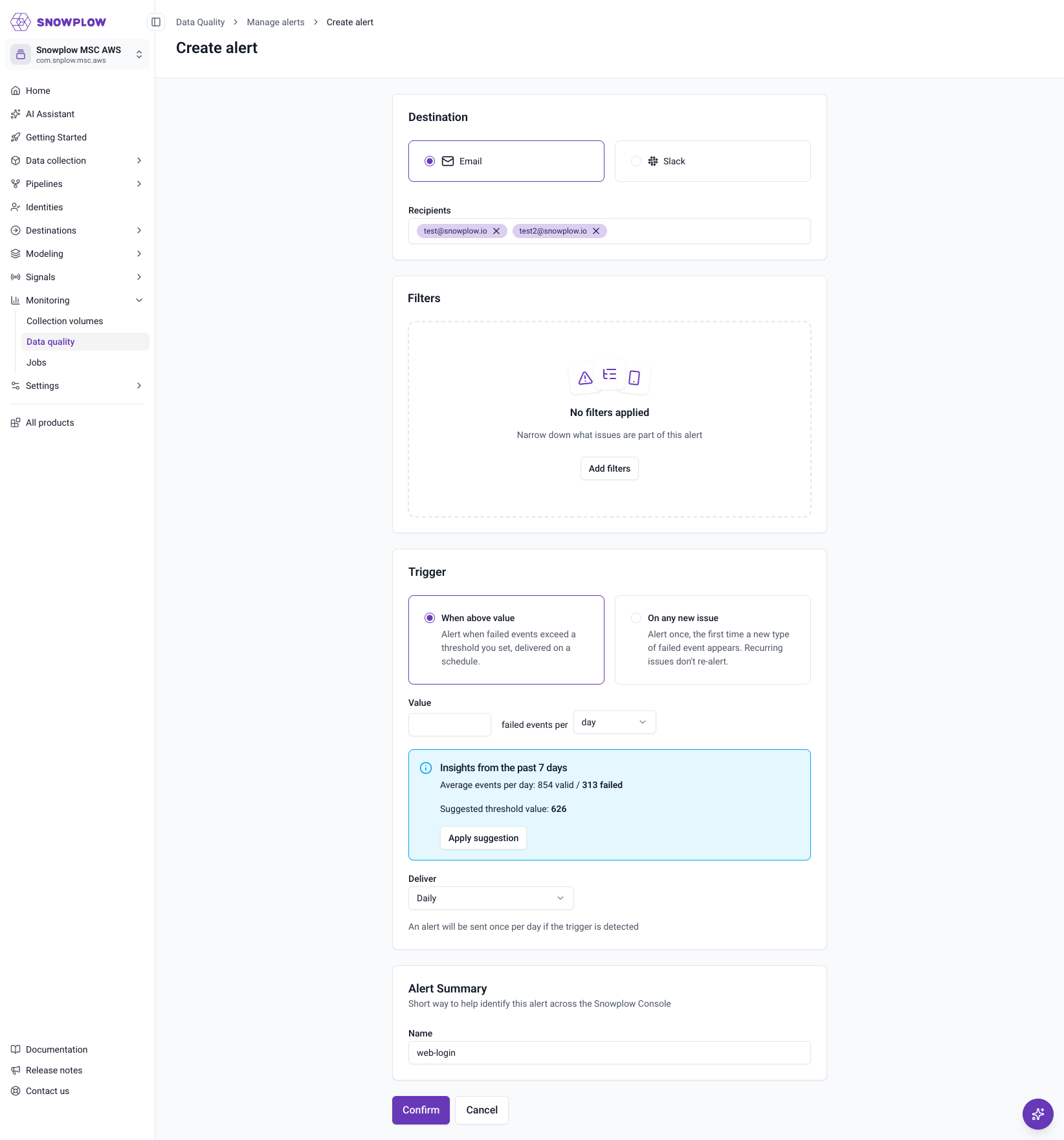
Slack notifications
- Select Slack as destination
- Select Slack channel from dropdown
- Click Add filters to configure filters
- Configure triggers as needed
- Enter alert name (e.g., "web-app")
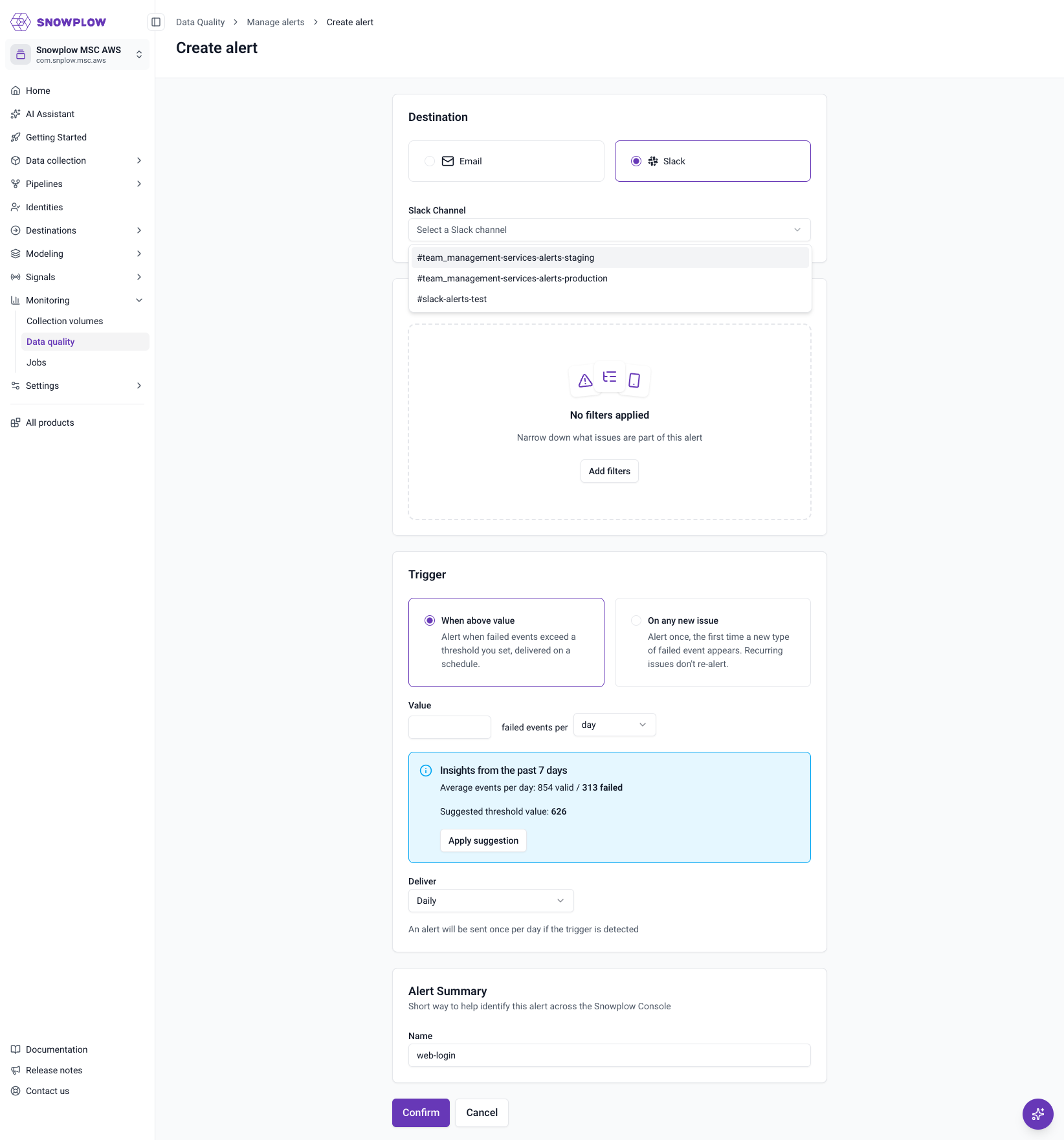
When no active Slack integration is found, a Connect with Slack button will appear instead of the list of channels.
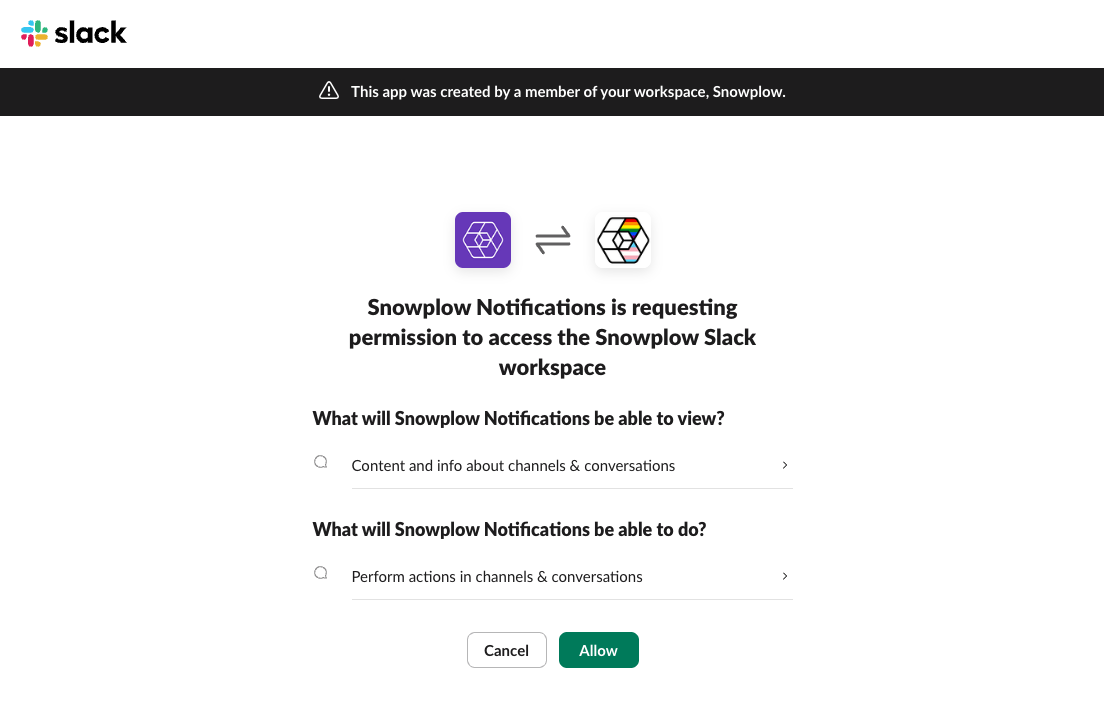
A Slack consent screen will appear.
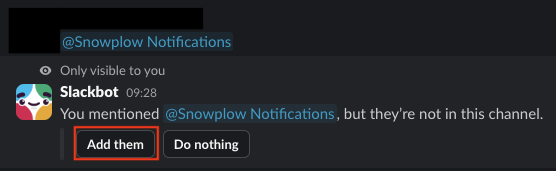
To select channels in the UI, first add the app to those channels. In Slack:
- Open the channel where you want notifications
- Type
@Snowplow Notificationsand send - Click "Add them" when prompted
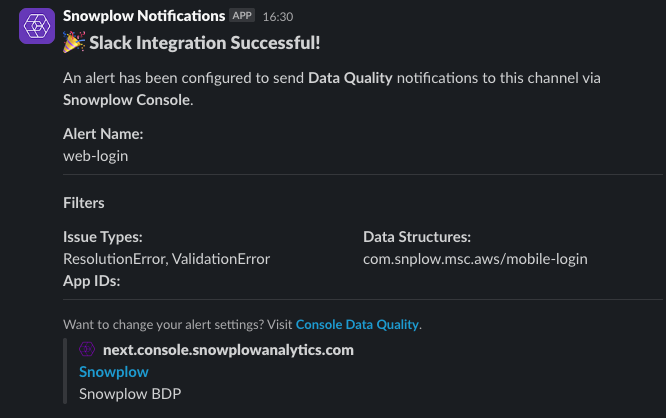
Once a Slack alert is configured you will see a confirmation notification in the selected Slack channel.
Set up filters
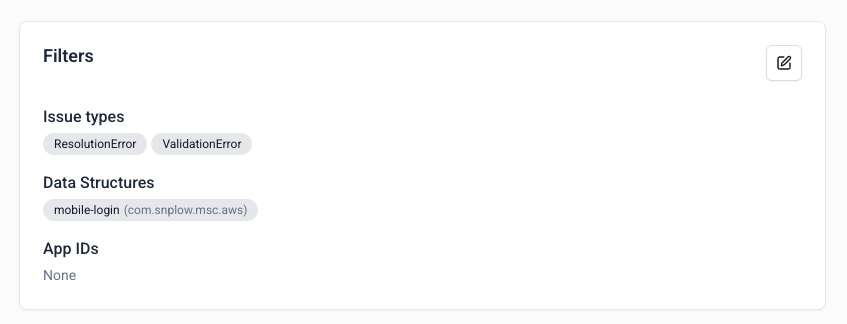
Configure when alerts should trigger:
- Issue types: select
ValidationError,ResolutionError, or both - Data structures: choose specific data structures (all versions will apply)
- App IDs: filter by application identifiers
Configure triggers
Set up when alerts should be triggered based on failed event conditions:
Trigger types
Choose from the available trigger options:
- When above value: set an absolute threshold for failed events (e.g., 1,500 failed events per hour)
- On any new issue: alert when a new type of failure appears
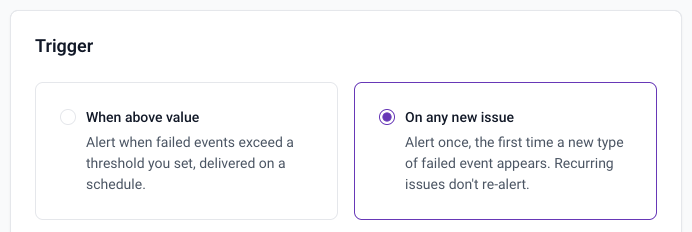
Threshold configuration
When using the When above value trigger:
- Value: Enter the threshold number of failed events
- Time period: Select the time window (10 minutes, hour, or day)
- Deliver: Choose notification frequency (daily, weekly, or monthly)
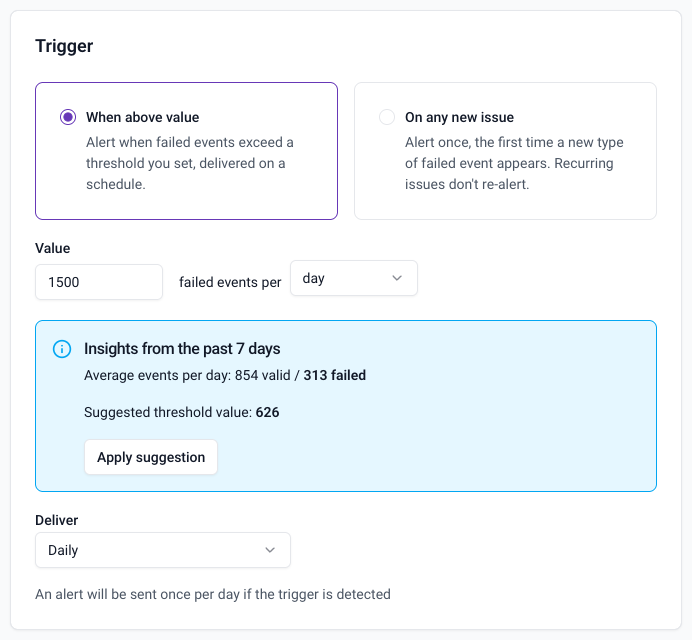
Insights from recent data
When configuring a threshold alert, the Insights panel displays data from the last 7 days to help you choose an appropriate threshold:
- Average events volume - Shows the average counts of valid and failed events (per relevant time unit)
- Suggested threshold - Provides a recommended threshold value based on recent patterns
- Apply suggestion - Click to automatically populate the threshold value field with the suggested value
Use these insights to set realistic thresholds that reflect your actual event patterns.
Alert delivery: If the trigger condition is met, the alert is sent once per delivery interval you selected.
Complete setup
- Review your configuration
- Click Confirm to create the alert
- Your alert will appear in the alerts list
Alert frequency
Alerts are checked every 10 minutes. What triggers a notification depends on the trigger type. See alert behavior for details.