For AI agents: a Markdown version of this page is at https://docs.snowplow.io/docs/event-studio/test-and-publish.md. The index of all documentation pages is at https://docs.snowplow.io/llms.txt, and the index for this section is at https://docs.snowplow.io/docs/cdi/llms.txt.
Test, promote, and publish a tracking design
A tracking design moves from draft to production in stages. Data structures go from draft, to your development environment, to your production environment. Event specifications go from Draft, through Publishing, to Published.
This page uses one verb for each action:
- Deploy: send a data structure from draft to your development environment
- Promote: move a data structure from development to production. In Console, the button reads Migrate to production.
- Publish: make an event specification active in the pipeline
Promote data structures before you publish the event specifications that reference them. If you don't, the publishing flow asks you to promote them in the same step.
Before you begin
The data structure permissions control which environment you can publish data structures to:
- Edit on development: you can make edits to data structures, but only publish them to the development registry
- Edit on production: you can make edits to data structures, and publish changes to the production registry
For the permissions that apply to tracking plans and their event specifications, see tracking plan permissions.
Deploy data structures to your development environment
Console saves new data structures as drafts. Draft data structures aren't deployed to your development environment and aren't available for event validation. See Work with drafts.
These steps apply to data structures that you edit in the JSON editor. To deploy a data structure from the JSON editor:
Validate the schema
In the JSON editor, click Validate to ensure you have valid JSON markup.
Start the deployment
Click Publish to development environment to save your changes to your development environment.
Choose the version
The versioning dialog appears. Select the appropriate version for your changes. In this example, for a schema at version 1-0-1:
- Non-breaking: increment the version to indicate a non-breaking change to the schema, from
1-0-1to1-0-2 - Breaking: increment the major version to indicate a breaking change to the schema, from
1-0-1to2-0-0 - Patch: patch the current version, which overwrites the existing schema without increasing the version, leaving the schema at
1-0-1
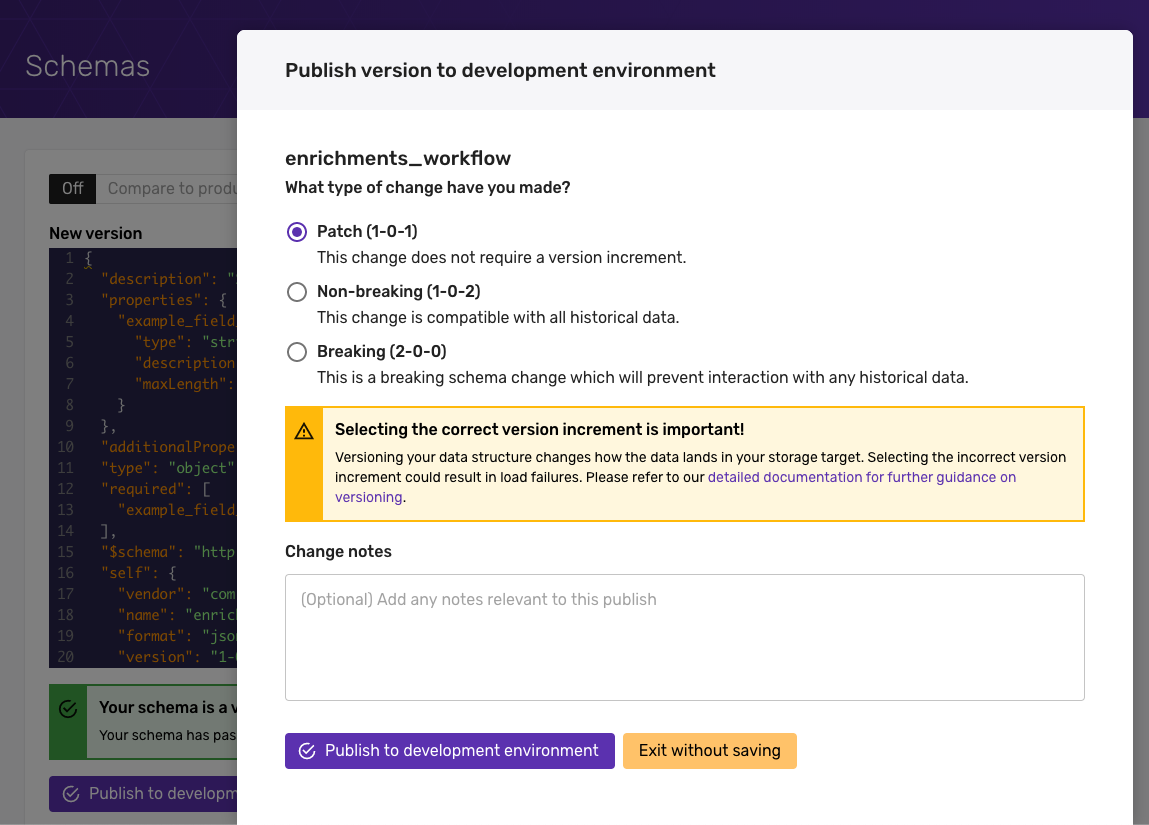
See Version and amend data structures for how versioning works.
Deploy the data structure
Click Deploy to development environment. Console deploys your data structure to your development environment, ready for you to test.
You can identify data structures where the development version is ahead of the production version by the yellow background on the version number in the data structures listing.
Test against draft event specifications
Pipelines don't validate events against draft event specifications. Development environments do, so you can test a draft without publishing the specification. See Validate event specifications.
A development environment checks each event against the version that its event_specification entity declares. An event that declares a published version validates against that version even when a draft exists. For events that arrive without an event_specification entity, the development environment infers a specification. Inference considers one version of each specification: the draft when there is one, and the highest published version otherwise.
To test a draft, edit the specification in Console, send a test event, and inspect the result in the Micro dashboard. Events that fail validation carry an event_specification_validation entity describing each error. The development environment picks up specification changes within a few minutes.
Promote data structures to production
Once you're happy with your changes in the development environment, promote them to your production environment.
Promoting data structures to production needs the Edit on production permission, the default for admin users. See Before you begin.
Navigate to Data structures and locate the data structure you wish to promote. You can find your data structure by:
- Using the search facility to search by name or vendor
- Ordering the Name column alphabetically
- Filtering the listing by Type and / or Vendor
Once located, either click the name to view the data structure and then click the Migrate to production button, or click the three dots to bring up the action menu where you can select Migrate to production.
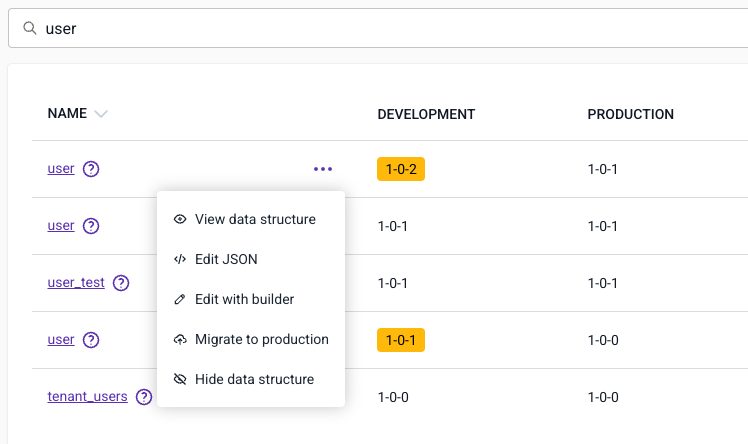
Console then shows the publish dialog. Depending on how you versioned your edits, you see one of two messages:
- If you're publishing a new schema, or have incremented the version while editing, the dialog confirms the action. Click Migrate to production to promote the data structure.
- If you have patched the version while editing, the dialog warns that you must increment the version before publishing. Patching the version on production isn't permitted. Increment the version number according to the changes you have made and click Migrate to production to promote the latest version of your data structure to your production environment.
Your data structure is then available in your production environment to send events against.
Publish event specifications
Publishing makes an event specification active in the pipeline and enables inference. Each specification has one of three statuses:
- Draft: the specification is being edited and isn't yet active in the pipeline, so no inference occurs there. Development environments do match events against drafts.
- Publishing: a transitional state, lasting a few minutes, while the pipeline propagates the specification. You don't need to take any action during this phase.
- Published: the specification is active. The pipeline matches incoming events against it, attaches an
event_specificationentity to them, and surfaces volume data and "last seen" timestamps in Console.
The tracking plan list view reflects the status of the specifications it contains. A tracking plan shows Published if all of its specifications are published, and With Drafts if any specification remains in draft.
You can publish from two places:
- From the tracking plan view: click the Publish All button above the list of specifications. This publishes all specifications in the plan that are in Draft status.
- From within an individual event specification: click the Publish button at the top of the specification page.
Before publishing completes, Console checks whether all data structures that the specification references, either the event data structure or any entity data structures, have been promoted to production. If any haven't, the publishing flow identifies them and requires you to promote them in the same step. This ensures the pipeline can perform inference correctly as soon as the specification reaches Published status.
To control where events that fail validation go, see Send invalid events to failed events.