For AI agents: a Markdown version of this page is at https://docs.snowplow.io/docs/destinations/warehouses-lakes/querying-data.md. The index of all documentation pages is at https://docs.snowplow.io/llms.txt, and the index for this section is at https://docs.snowplow.io/docs/cdi/llms.txt.
Query Snowplow data in your warehouse
You will typically find most of your Snowplow data in the events table. If you are using Redshift, there will be extra tables for self-describing events and entities — see below.
Please refer to the structure of Snowplow data for the principles behind our approach, as well as the descriptions of the various standard columns.
Querying the events table directly can be useful for exploring your events or building custom analytics. However, for many common use cases it’s much easier to use our data models, which provide a pre-aggregated view of your data.
The simplest query could look like this:
SELECT * FROM <events>
WHERE event_name = 'page_view'
You will need to replace <events> with the appropriate location — the database, schema and table name will depend on your configuration.
With large data volumes (read: any production system), you should always include a filter on the partition key (normally, collector_tstamp), for example:
WHERE ... AND collector_tstamp between timestamp '2023-10-23' and timestamp '2023-11-23'
This ensures that you read from the minimum number of (micro-)partitions necessary, making the query run much faster and reducing compute cost (where applicable).
Connect to your warehouse
How you connect depends on your choice of storage and your Snowplow platform.
Snowplow CDI
For Snowplow CDI Private Managed Cloud or Cloud customers, you can find your connection details in Snowplow Console, under the destination you've selected.
Get example queries from Console
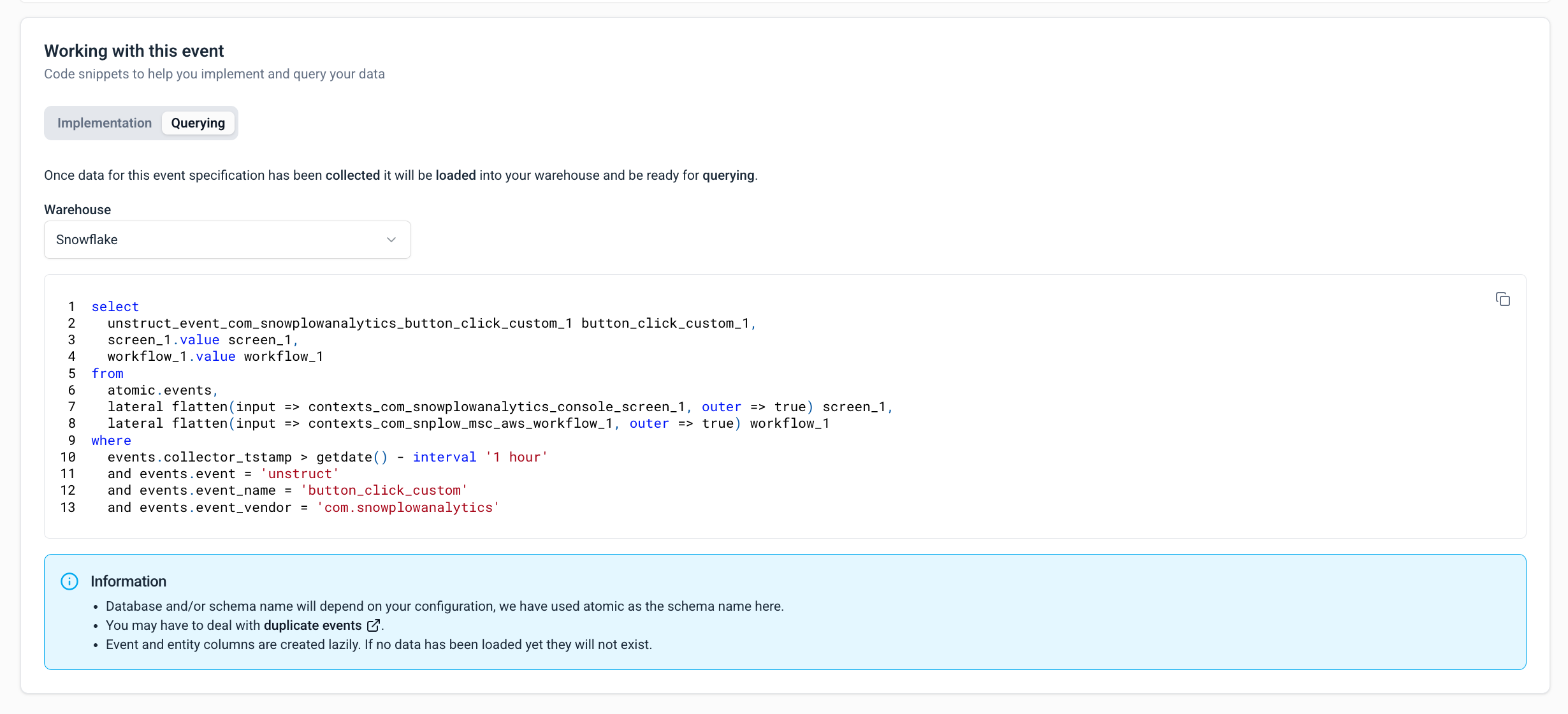
When viewing an event specification in Console, the Working with this event section provides ready-to-use code snippets. The Querying tab provides example queries to help you retrieve and analyze that event's data. Choose your warehouse to see SQL written for it.
Snowplow Self-Hosted
If you don't have access to Snowplow Console, use these instructions to connect to the storage you set up with Terraform:
- Postgres
- Redshift
- BigQuery
- Snowflake
- Databricks
- Synapse Analytics
Your database will be named according to the postgres_db_name Terraform variable. It will contain two schemas:
atomic— the validated eventsatomic_bad— the failed events
You can connect to the database using the credentials you provided for the loader in the Terraform variables (postgres_db_username and postgres_db_password), along with the postgres_db_address and postgres_db_port Terraform outputs.
If you need to reset your username or password, you can follow these steps.
See the AWS RDS documentation for more details on how to connect.
If you opted for the secure option, you will first need to create a tunnel into your VPC to be able to connect to your RDS instance and be able to query the data. A common solution to this issue is to configure a bastion host as described here.
The database name and the schema name will be defined by the redshift_database and redshift_schema variables in Terraform.
There are two different ways to login to the database:
- The first option is to use the credentials you configured for the loader in the Terraform variables (
redshift_loader_userandredshift_loader_password) - The second option is to grant
SELECTpermissions on the schema to an existing user
To connect, you can use the Redshift UI or something like psql.
The database will be called <prefix>_snowplow_db, where <prefix> is the prefix you picked in your Terraform variables file. It will contain an atomic schema with your validated events.
You can access the database via the BigQuery UI.
The database name and the schema name will be defined by the snowflake_database and snowflake_schema variables in Terraform.
There are two different ways to login to the database:
- The first option is to use the credentials you configured for the loader in the Terraform variables (
snowflake_loader_userandsnowflake_loader_password) - The second option is to grant
SELECTpermissions on the schema to an existing user
To connect, you can use either Snowflake dashboard or SnowSQL.
On Azure, you have created an external table in the last step of the guide. Use this table and ignore the text below.
The database name and the schema name will be defined by the databricks_database and databricks_schema variables in Terraform.
There are two different ways to login to the database:
- The first option is to use the credentials you configured for the loader in the Terraform variables (
databricks_loader_useranddatabricks_loader_password, or alternatively thedatabricks_auth_token) - The second option is to grant
SELECTpermissions on the schema to an existing user
See the Databricks tutorial for more details on how to connect. The documentation on Unity Catalog is also useful.
In Synapse Analytics, you can connect directly to the data residing in ADLS. You will need to know the names of the storage account (set in the storage_account_name Terraform variable) and the storage container (it’s a fixed value: lake-container).
Follow the Synapse documentation and use the OPENROWSET function. If you created a data source in the last step of the quick start guide, your queries will be a bit simpler.
If you created a OneLake shortcut in the last step of the quick start guide, you will be able to explore Snowplow data in Fabric, for example, using Spark SQL.
Self-describing events
Self-describing events can contain their own set of fields, defined by their schema.
- Redshift
- BigQuery
- Snowflake
- Databricks, Spark SQL
- Synapse Analytics
For Redshift users, self-describing events are not part of the standard events table. Instead, each type of event is in its own table. The table name and the fields in the table will be determined by the event’s schema. See how schemas translate to the warehouse for more details.
You can query just the table for that particular self-describing event, if that's all that's required for your analysis, or join that table back to the events table:
SELECT
    ...
FROM
    <schema>.<events> ev
LEFT JOIN
    <schema>.my_example_event_table sde
    ON sde.root_id = ev.event_id AND sde.root_tstamp = ev.collector_tstamp
You may need to take care of duplicate events.
Each type of self-describing event is in a dedicated RECORD-type column. The column name and the fields in the record will be determined by the event’s schema. See how schemas translate to the warehouse for more details.
You can query fields in the self-describing event like so:
SELECT
    ...
    unstruct_event_my_example_event_1.my_field,
    ...
FROM
    <events>
The column name produced by previous versions of the BigQuery Loader (<2.0.0) would contain full schema version, e.g. unstruct_event_my_example_event_1_0_0.
The BigQuery Loader upgrade guide describes how to enable the legacy column names in the 2.0.0 loader.
Each type of self-describing event is in a dedicated OBJECT-type column. The column name will be determined by the event’s schema. See how schemas translate to the warehouse for more details.
You can query fields in the self-describing event like so:
SELECT
    ...
    unstruct_event_my_example_event_1:myField::varchar, -- field will be variant type so important to cast
    ...
FROM
    <events>
Each type of self-describing event is in a dedicated STRUCT-type column. The column name and the fields in the STRUCT will be determined by the event’s schema. See how schemas translate to the warehouse for more details.
You can query fields in the self-describing event by extracting them like so:
SELECT
    ...
    unstruct_event_my_example_event_1.my_field,
    ...
FROM
    <events>
Each type of self-describing event is in a dedicated column in JSON format. The column name will be determined by the event’s schema. See how schemas translate to the warehouse for more details.
You can query fields in the self-describing event like so:
SELECT
    ...
    JSON_VALUE(unstruct_event_my_example_event_1, '$.my_field')
    ...
FROM
    OPENROWSET(BULK 'events', DATA_SOURCE = '<events>', FORMAT = 'DELTA') AS events
Entities
Entities (also known as contexts) provide extra information about the event, such as data describing a product or a user.
- Redshift
- BigQuery
- Snowflake
- Databricks, Spark SQL
- Synapse Analytics
For Redshift users, entities are not part of the standard events table. Instead, each type of entity is in its own table. The table name and the fields in the table will be determined by the entity’s schema. See how schemas translate to the warehouse for more details.
The entities can be joined back to the core events table by the following, which is a one-to-one join (for a single record entity) or a one-to-many join (for a multi-record entity), assuming no duplicates.
SELECT
    ...
FROM
    <schema>.<events> ev
LEFT JOIN -- assumes no duplicates, and will return all events regardless of if they have this entity
    <schema>.my_entity ent
    ON ent.root_id = ev.event_id AND ent.root_tstamp = ev.collector_tstamp
You may need to take care of duplicate events.
Each type of entity is in a dedicated REPEATED RECORD-type column. The column name and the fields in the record will be determined by the entity’s schema. See how schemas translate to the warehouse for more details.
You can query a single entity’s fields by extracting them like so:
SELECT
    ...
    contexts_my_entity_1[SAFE_OFFSET(0)].my_field AS my_field,
    ...
FROM
    <events>
Alternatively, you can use the unnest function to explode out the array into one row per entity value.
SELECT
    ...
    my_ent.my_field AS my_field,
    ...
FROM
    <events>
LEFT JOIN
    unnest(contexts_my_entity_1) AS my_ent -- left join to avoid discarding events without values in this entity
Column name produced by previous versions of the BigQuery Loader (<2.0.0) would contain full schema version, e.g. contexts_my_entity_1_0_0.
Each type of entity is in a dedicated ARRAY-type column. The column name will be determined by the entity’s schema. See how schemas translate to the warehouse for more details.
You can query a single entity’s fields by extracting them like so:
SELECT
    ...
    contexts_my_entity_1[0]:myField::varchar,  -- field will be variant type so important to cast
    ...
FROM
    <events>
Alternatively, you can use the lateral flatten function to explode out the array into one row per entity value.
SELECT
    ...
    r.value:myField::varchar,  -- field will be variant type so important to cast
    ...
FROM
    <events> AS t,
    LATERAL FLATTEN(input => t.contexts_my_entity_1) r
Each type of entity is in a dedicated ARRAY<STRUCT>-type column. The column name and the fields in the STRUCT will be determined by the entity’s schema. See how schemas translate to the warehouse for more details.
You can query a single entity’s fields by extracting them like so:
SELECT
    ...
    contexts_my_entity_1[0].my_field,
    ...
FROM
    <events>
Alternatively, you can use the LATERAL VIEW clause combined with EXPLODE to explode out the array into one row per entity value.
SELECT
    ...
    my_ent.my_field,
    ...
FROM
    <events>
    LATERAL VIEW EXPLODE(contexts_my_entity_1) AS my_ent
Each type of entity is in a dedicated column in JSON format. The column name will be determined by the entity’s schema. See how schemas translate to the warehouse for more details.
You can query a single entity’s fields by extracting them like so:
SELECT
    ...
    JSON_VALUE(contexts_my_entity_1, '$[0].my_field')
    ...
FROM
    OPENROWSET(BULK 'events', DATA_SOURCE = '<events>', FORMAT = 'DELTA') AS events
Alternatively, you can use the CROSS APPLY clause combined with OPENJSON to explode out the array into one row per entity value.
SELECT
    ...
    JSON_VALUE(my_ent.[value], '$.my_field')
    ...
FROM
    OPENROWSET(BULK 'events', DATA_SOURCE = '<events>', FORMAT = 'DELTA') as events
    CROSS APPLY OPENJSON(contexts_my_entity_1) AS my_ent
Failed events
Failed events aren't in the events table. To query them, load failed events into a separate table. The failed events hub lists every page about finding, monitoring, and recovering them.
Dealing with duplicates
In some cases, your data might contain duplicate events (full deduplication before the data lands in the warehouse is optionally available for Redshift, Snowflake and Databricks on AWS).
While our data models deal with duplicates for you, there may be cases where you need to de-duplicate the events table yourself.
- Redshift
- BigQuery
- Snowflake
- Databricks, Spark SQL
- Synapse Analytics
In Redshift, you must first generate a ROW_NUMBER() on your events and use this to de-duplicate.
WITH unique_events AS (
    SELECT
        ...
        ROW_NUMBER() OVER (PARTITION BY a.event_id ORDER BY a.collector_tstamp) AS event_id_dedupe_index
    FROM
        <events> a
)

SELECT
    ...
FROM
    unique_events
WHERE
    event_id_dedupe_index = 1
Things get a little more complicated if you want to join your event data with a table containing entities.
Suppose your entity is called my_entity. If you know that each of your events has at most 1 such entity attached, the de-duplication requires the use of a row number over event_id to get each unique event:
WITH unique_events AS (
    SELECT
        ev.*,
        ROW_NUMBER() OVER (PARTITION BY a.event_id ORDER BY a.collector_tstamp) AS event_id_dedupe_index
    FROM
        <schema>.<events> ev
),

unique_my_entity AS (
    SELECT
        ent.*,
        ROW_NUMBER() OVER (PARTITION BY a.root_id ORDER BY a.root_tstamp) AS my_entity_index
    FROM
        <schema>.my_entity_1 ent
)

SELECT
    ...
FROM
    unique_events u_ev
LEFT JOIN
    unique_my_entity u_ent
    ON u_ent.root_id = u_ev.event_id AND u_ent.root_tstamp = u_ev.collector_tstamp AND u_ent.my_entity_index = 1
WHERE
    u_ev.event_id_dedupe_index = 1
If your events might have more than one First, de-duplicate the events table in the same way as above, but also keep track of the number of duplicates (see Unfortunately, listing all fields manually can be quite tedious, but we have added support for this in the de-duplication logic of our dbt packages.my_entity attached, the logic is slightly more complex.Details
event_id_dedupe_count below). In the entity table, generate a row number per unique combination of all fields in the record. Then join on root_id and root_tstamp as before, but with an additional clause that the row number is a multiple of the number of duplicates, to support the 1-to-many join. This ensures all duplicates are removed while retaining all original records of the entity. This may look like a weird join condition, but it works.
In BigQuery it is as simple as using a QUALIFY statement over your initial query:
SELECT
    ...
FROM <events> a
QUALIFY ROW_NUMBER() OVER (PARTITION BY a.event_id ORDER BY a.collector_tstamp) = 1
In Snowflake it is as simple as using a qualify statement over your initial query:
SELECT
    ...
FROM <events> a
QUALIFY ROW_NUMBER() OVER (PARTITION BY a.event_id ORDER BY a.collector_tstamp) = 1
In Databricks it is as simple as using a qualify statement over your initial query:
SELECT
    ...
FROM <events> a
QUALIFY ROW_NUMBER() OVER (PARTITION BY a.event_id ORDER BY a.collector_tstamp) = 1
In Synapse you must first generate a ROW_NUMBER() on your events and use this to de-duplicate.
WITH unique_events AS (
    SELECT
        ...
        ROW_NUMBER() OVER (PARTITION BY event_id ORDER BY collector_tstamp) AS event_id_dedupe_index
    FROM
        OPENROWSET(BULK 'events', DATA_SOURCE = '<events>', FORMAT = 'DELTA') AS events
)

SELECT
    ...
FROM
    unique_events
WHERE
    event_id_dedupe_index = 1