Use Snowtype with Google Tag Manager
Snowtype can generate tracking code specifically formatted for Google Tag Manager (GTM). Instead of importing the code into a JavaScript project, you copy the generated output into a Custom JavaScript variable in GTM.
This is useful when your tracking implementation lives entirely within GTM, and you don't have a separate code repository for it.
Benefits of using Snowtype with GTM:
- Generated functions are available on
window.__snowtypefor all tags to use - Inline JSDoc type definitions for code documentation
Set up a project
If you already use Snowtype in an existing project, you can switch to GTM output by changing your configuration. Set tracker to google-tag-manager and language to javascript-gtm:
{
    "tracker": "google-tag-manager",
    "language": "javascript-gtm"
}
Then run npx snowtype generate to regenerate.
Create a new project
If you don't have an existing project, you can create one specifically for GTM. This is a lightweight Node.js project whose only purpose is to run Snowtype and produce the generated output.
You need Node.js version 18 or later.
# Create and enter a project directory
mkdir snowtype-gtm && cd snowtype-gtm

# Initialize the project and install Snowtype
npm init -y
npm install @snowplow/snowtype@latest

# Run the init flow — select 'Google Tag Manager' when prompted
npx snowtype init
After completing the init flow and adding your desired configuration, generate the code:
npx snowtype generate
Snowtype will create snowplow.js and snowplow.minified.js files at the path you configured in outpath. These files contain the code you'll add to GTM.
Add the generated code to GTM
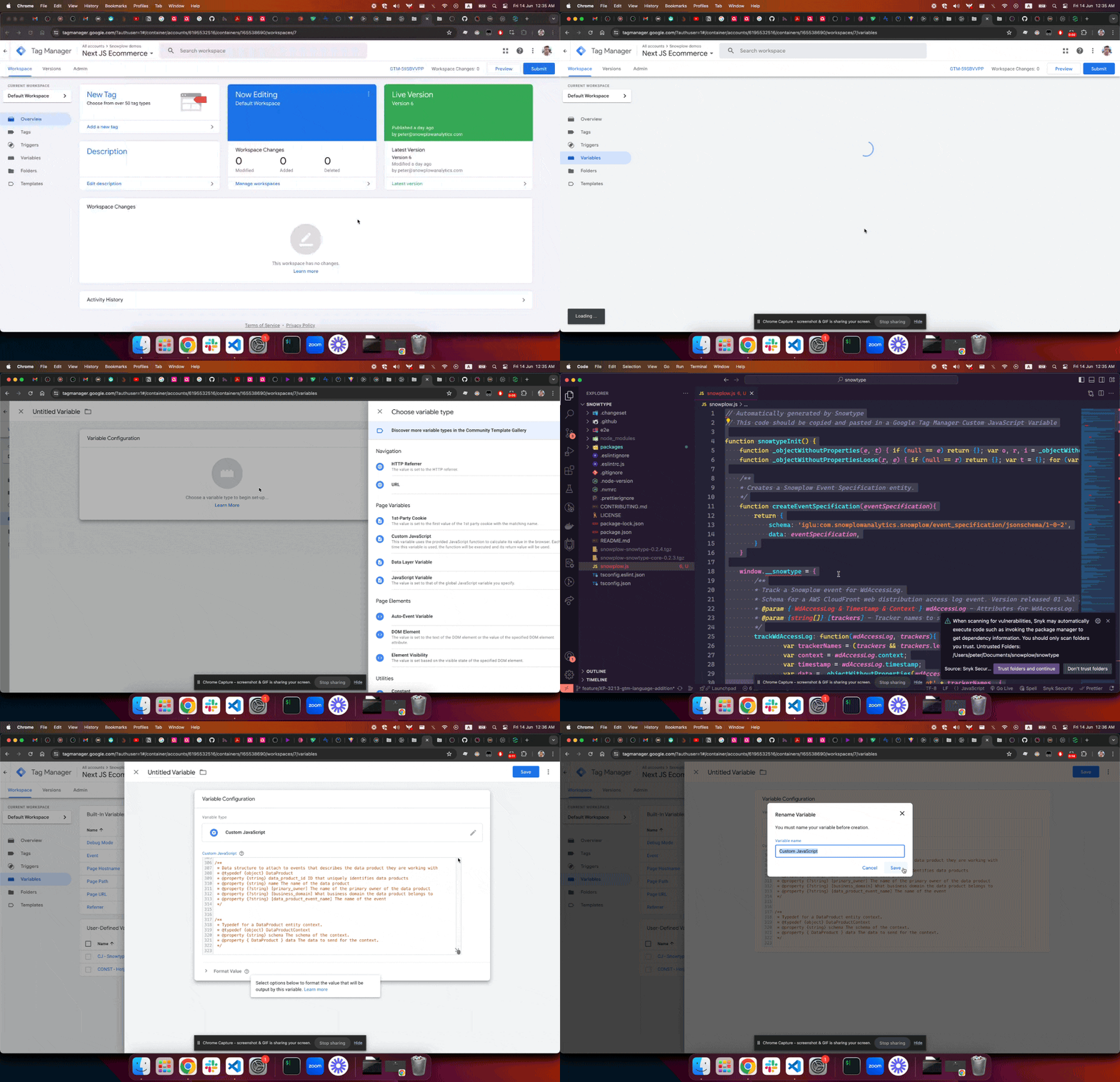
The generated snowplow.js file is designed to be copied and pasted into a GTM Custom JavaScript variable.
To create the variable:
- In GTM, go to Variables > New.
- Choose Custom JavaScript as the variable type.
- Paste the contents of
snowplow.jsinto the code field. - Name the variable (for example,
Snowtype Tracking).
GTM limits Custom JavaScript variables to 20,000 characters. If your generated code exceeds this limit, Snowtype will warn you. Use the snowplow.minified.js file instead, which Snowtype generates automatically alongside the full version. If the minified version still exceeds the limit, you can split the code across multiple variables or place it directly in a Custom HTML tag.
Initialize the tracking code
The Custom JavaScript variable defines a snowtypeInit() function but doesn't execute it. To run it, include the variable in a Custom HTML tag that fires during page initialization:
<script>
{{Snowtype Tracking}}
</script>
Replace {{Snowtype Tracking}} with the name you gave to the Custom JavaScript variable.
Once this tag fires, all generated tracking functions become available on the window.__snowtype object.
Call the tracking functions
After initialization, you can call the generated functions from any tag or script on the page. The functions are available on window.__snowtype.
For data structures, Snowtype generates track and create functions:
// Track as a self-describing event
window.__snowtype.trackProductView({ name: "Example", price: 9.99 });

// Create an entity for attaching to other events
var productEntity = window.__snowtype.createProductView({ name: "Example", price: 9.99 });
For event specifications, Snowtype generates Spec functions that include the event specification metadata automatically:
window.__snowtype.trackAddToCartSpec({
  name: "Example",
  price: 9.99,
  context: [productEntity]
});
The bottom of the generated file includes JSDoc type definitions for all functions and their parameters.